
AvoMap Help Center
6 min read
Timeline
In short
- How long each segment plays is what sets the length of your video.
- Pauses hold the camera still, and you can cut a segment in two or merge two into one.
- Titles, symbols and numbers get their timing on the same tracks.
On this page
The timeline runs along the bottom of the editor, and it's where your video gets its timing. Everything about when and how long happens here: how long each leg of your trip plays, where the video pauses to linger, and when your titles, markers, and numbers appear and disappear.
If the Route tab decides where your video goes, the timeline decides how it's paced.
What you're looking at
The timeline is split into two areas, stacked top to bottom:
- The route track (top) — your segments laid out in travel order, each as its own block. The width of a block is how long that leg plays on screen.
- The overlay tracks (below) — a row for each title, symbol, number, and group, showing exactly when it's on screen and for how long.
A red playhead marks the current moment, and the ruler above counts the seconds. Up in the corner you'll see the current time and distance alongside the totals for the whole video.
Playing and scrubbing
Press play — the button or Space — to watch your video come together, and everything updates live in the preview above. To jump to an exact moment, drag the playhead along the timeline — the preview scrubs with you, so you can line things up precisely.
The playback controls also let you jump to the start or end, or step forward and back a frame at a time — ← and → — for fine adjustments.
Segments set your video's length
Your video is simply your segments played one after another. Each segment takes up a slice of time, and the length of your whole video is the sum of those slices — add a leg and the video gets longer, remove one and it gets shorter.
Every segment appears as its own block in the order you travelled, so the width of each block is how long that leg plays on screen. This is the core idea of the timeline: you shape the pacing by deciding how much time each part of the journey gets.
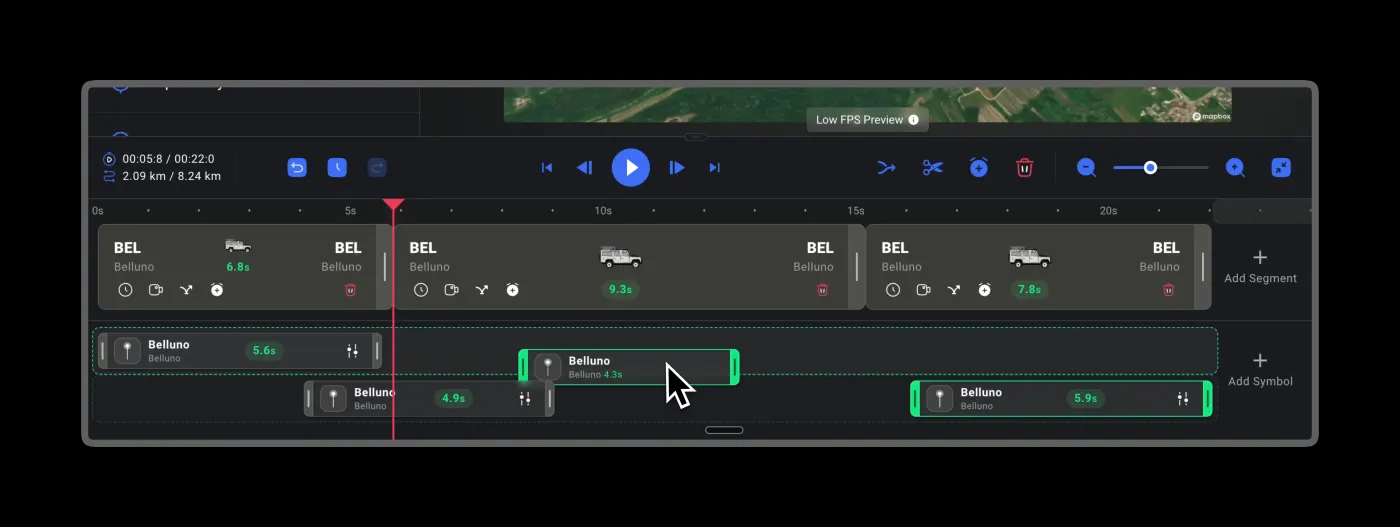
Make a segment longer or shorter
To change how long a leg plays, grab the edge of its block on the timeline and drag it. Drag outward to give that segment more time — great for a scenic stretch you want to linger on — or drag inward to speed it up and keep things snappy. Hold Shift while you drag to snap to whole seconds.
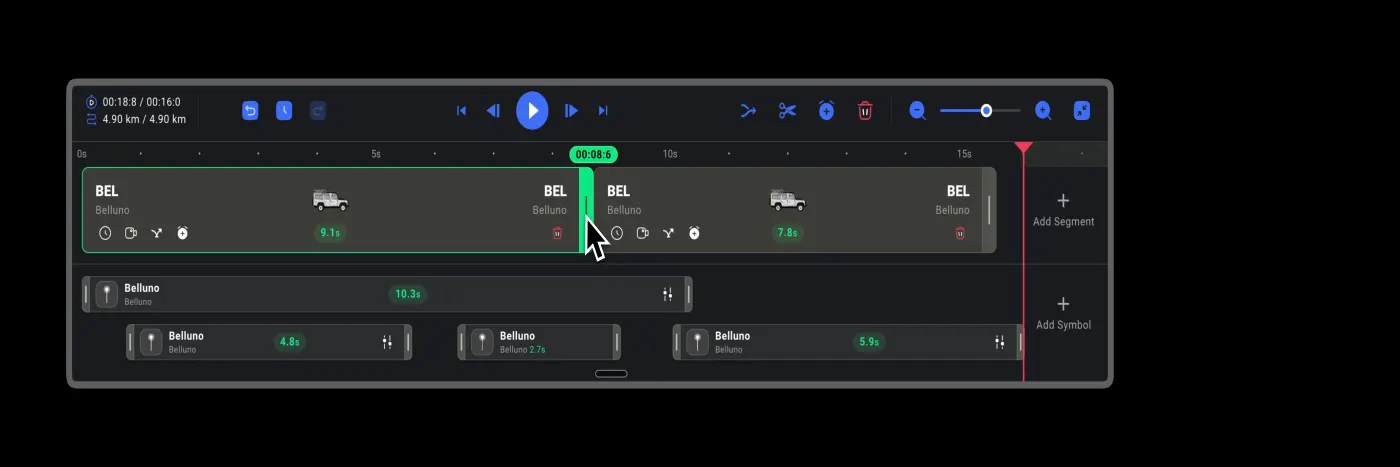
Because the total length is the sum of every segment, stretching one leg makes the whole video a little longer, and trimming one makes it shorter. This is how you fine-tune the pacing — slow down the moments that matter and move quickly through the rest.
Pauses
Sometimes you want the video to stop and take in the view. Add a pause between segments — the toolbar button or P — and the shot holds on that spot for a moment before the journey continues — perfect for lingering on a summit, a city, or a viewpoint.
AvoMap asks before it drops one in, naming the two stops it will sit between and the exact moment it lands on.
A pause then sits on the route track like a segment of its own, and you can drag its edge to make the moment longer or shorter, just like any other block.
Cutting and merging segments
You're not stuck with the segments exactly as you built them — the timeline lets you break them up and put them back together:
- Cut ( C ) splits a segment into two at the playhead. Move the playhead to where you want the break, then cut — handy when you want to give the two halves different timing, or drop something in between.
- Merge ( M ) does the opposite: start merging, then pick the two neighbouring segments to join so they play as one.
Undo and redo
Every change you make on the timeline can be walked back. Undo with ⌘+Z to step back through your recent changes, and Redo with ⌘+⇧+Z to bring them forward again — so you can experiment freely without worrying about losing your place. (On Windows and Linux, use Ctrl instead of ⌘.)
Press H for the history drawer, which lists the saved snapshots of this map: what changed, in which part of the editor, and how long ago. Restore puts the map back to any of them, so you can jump back past a dozen edits in one go instead of pressing undo until your finger aches. The list is per map, and Clear History empties it for good.
Deleting
Select any segment or overlay and press Delete (or Backspace) to remove it. Deleting a segment shortens the video by that segment's slice of time; deleting an overlay simply takes it off screen. Anything you remove can be brought back with Undo.
Zooming in and out
On a long trip the blocks can get tight. Use the zoom control to spread the timeline out for precise, second-by-second edits, or zoom back out to see the whole video at a glance. Press T to snap the timeline back to fit the player width in one tap.
The timeline toolbar
Most timeline actions live in the toolbar across the top:
| Control | What it does | Shortcut |
|---|---|---|
| Play / step / skip | Play or pause, step a frame at a time, or jump to the start or end | Space · ← → |
| Undo / Redo | Walk your changes back and forward | ⌘+Z · ⌘+⇧+Z |
| Add pause | Drop a pause so the video lingers on a spot | P |
| Cut | Split a segment in two at the playhead | C |
| Merge | Join a segment back together with its neighbour | M |
| Delete | Remove the selected segment or overlay | Delete |
| Fit / Zoom | Fit the timeline to the player, or spread it out for detail | T |
See the full list of keyboard shortcuts for everything you can do from the keyboard.
Timing your titles, markers, and numbers
The tracks below your route are where overlays and symbols live. Anything you add — a title, a photo, an animated number, a map marker — gets its own block here, and that block controls when it appears and how long it stays. They gently fade in and out, so you can reveal each element at just the right moment rather than all at once.
Drag a block along its track to change when it shows up, or drag its edges to change how long it lingers. Right-click (or long-press) a block to open its options — jump straight to its content, style or animation, duplicate it, or delete it.
Maximum length
To keep videos smooth and high-quality, there's a maximum length (currently two minutes). If you reach it, shorten a few segments on the timeline to make room for more — see Settings for more on length and export.
Tips
- Pace it deliberately. Give the moments that matter more room, and move quickly through the stretches in between.
- Hold Shift to snap. Snapping durations to whole seconds keeps your timing tidy — hold Shift while you drag.
- Learn the keys. A few shortcuts make editing much faster — see the keyboard shortcuts page.
- Pause on the highlights. A short pause on a summit or a skyline gives viewers a beat to take it in.
- Experiment freely. Undo and Redo mean you can try a different rhythm and step right back if you don't like it.
Frequently Asked Questions
How long will my video be?
Your video's length is the sum of all your segments. Each segment plays for its own slice of time, so adding a segment makes the video longer and trimming one makes it shorter. You control every slice on the timeline.
How do I make one part of the trip last longer?
On the timeline, grab the edge of that segment's block and drag it outward to give it more time, or inward to speed it up. Hold Shift while dragging to snap to whole seconds.
Can I split a segment or join two together?
Yes. Move the playhead to where you want the break and use Cut to split a segment in two, or select a segment and use Merge to join it back with its neighbour.
How do I pause on a special spot?
Add a pause between segments. The video holds on that spot for a moment before the journey continues — great for lingering on a summit, a city, or a viewpoint.
I made a mistake — can I undo it?
Yes. The timeline toolbar has Undo and Redo, so you can step back through your changes and forward again at any time.
Where to go next
Was this page helpful?