
AvoMap Help Center
4 min read
Track
In short
- The track is the line your route draws, plus the vehicle that travels along it.
- Colour, width and the style of the line are all yours to set.
- Swap the flat marker for an animated 3D model — a plane, a car, a boat.
On this page
The Track is the line your route draws across the map, and the vehicle that travels along it as the video plays. In this tab you decide how that line looks and what leads the way — a simple marker or a fully animated 3D model.
Styling the line
As your video plays, the track draws itself along your path, revealing the journey step by step. You can style it to match your story:
- Color – pick any color for the line — choose a swatch, type a custom hex value, or use the eyedropper. A bright, warm color usually stands out best against the map.
- Width – make the line thin and subtle or bold and prominent.
- Opacity – soften the line so the map shows through, or keep it fully solid.
Each segment can have its own style, so a flight leg and a hiking leg can look different if you like. Happy with one segment and want the rest to match? Sync All copies that style to every segment in one click.
The travelling vehicle
A marker travels along the track to show where you are in the journey. You can keep it simple or make it a real showpiece.
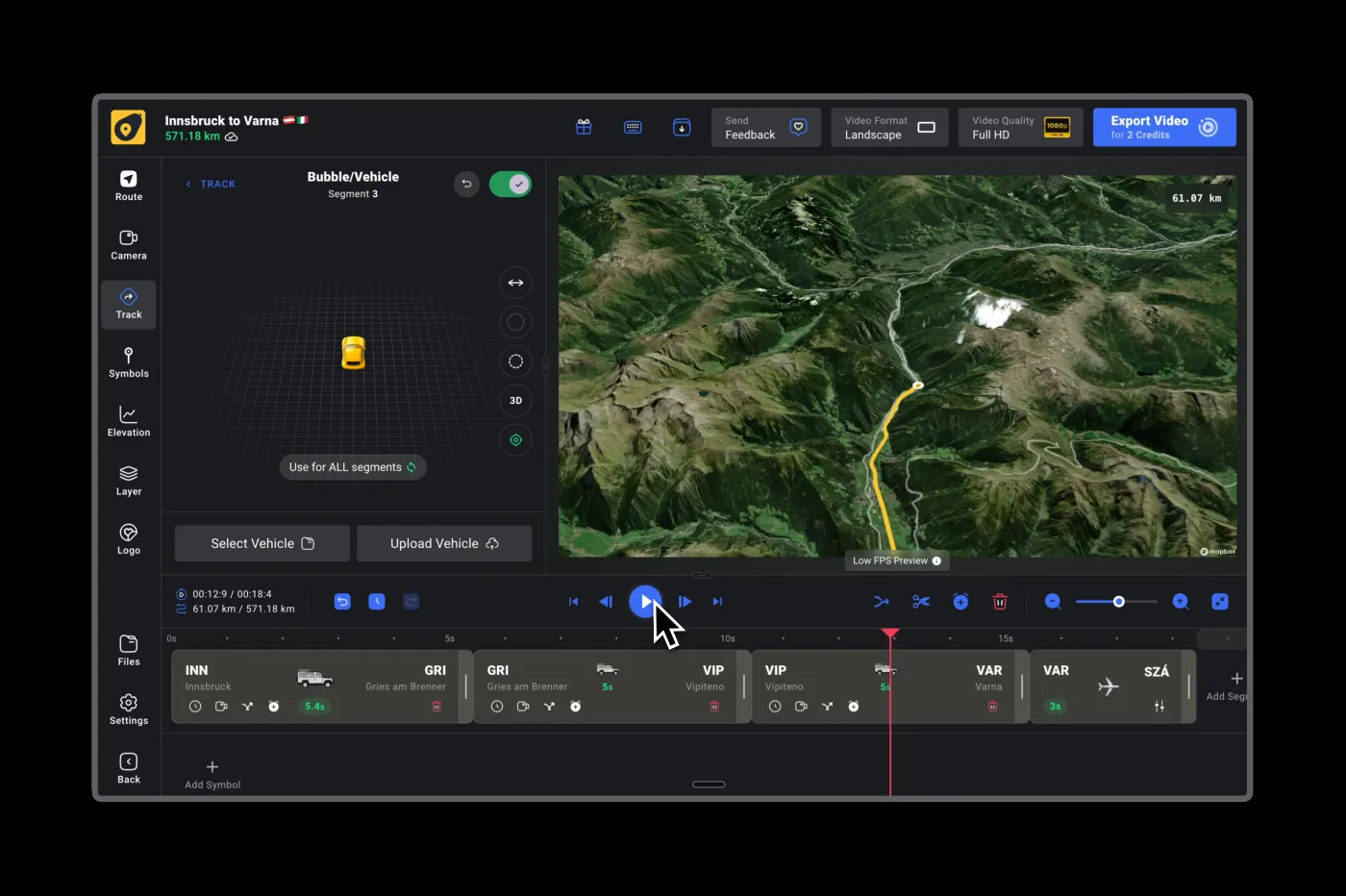
Simple markers
The classic look — the Circle option — is a clean dot that glides along the route. It's tidy, clear, and works for any kind of trip.
3D models
For extra wow, swap the marker for a 3D model that matches how you travelled:
Browse the model library with Change Model to pick something new, and use the Size slider to scale it from Small to Huge.
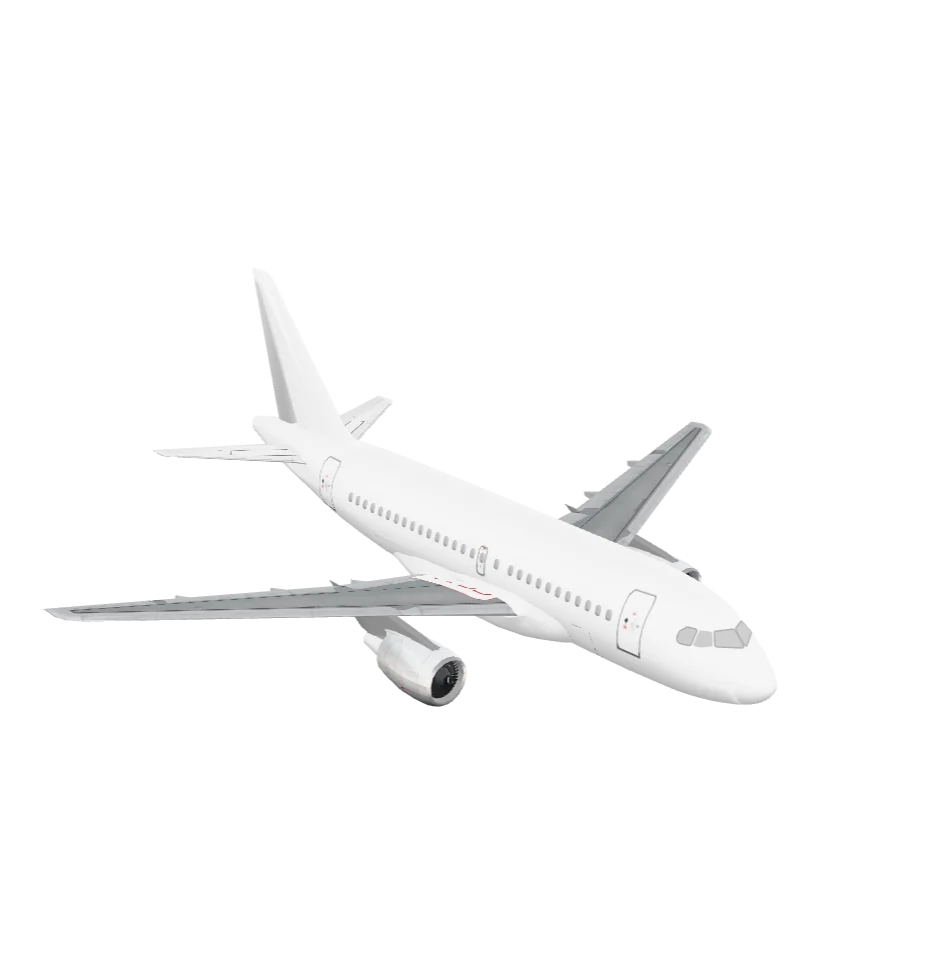
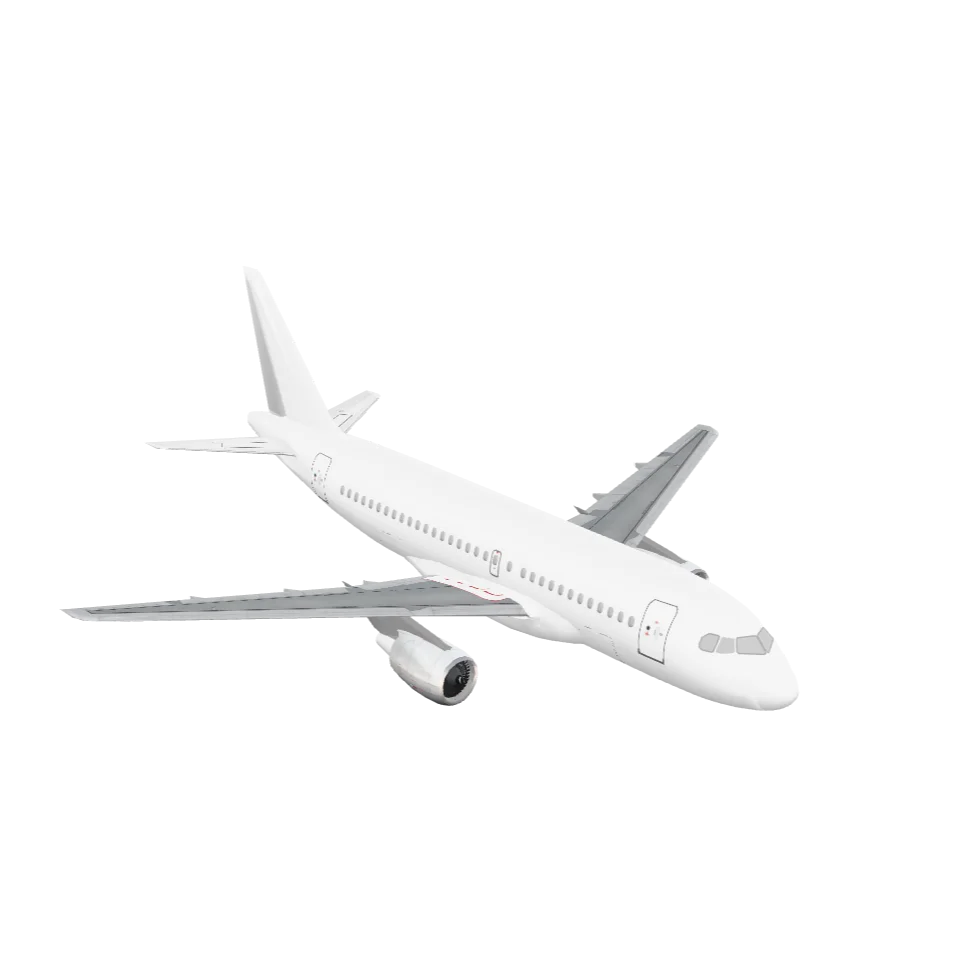
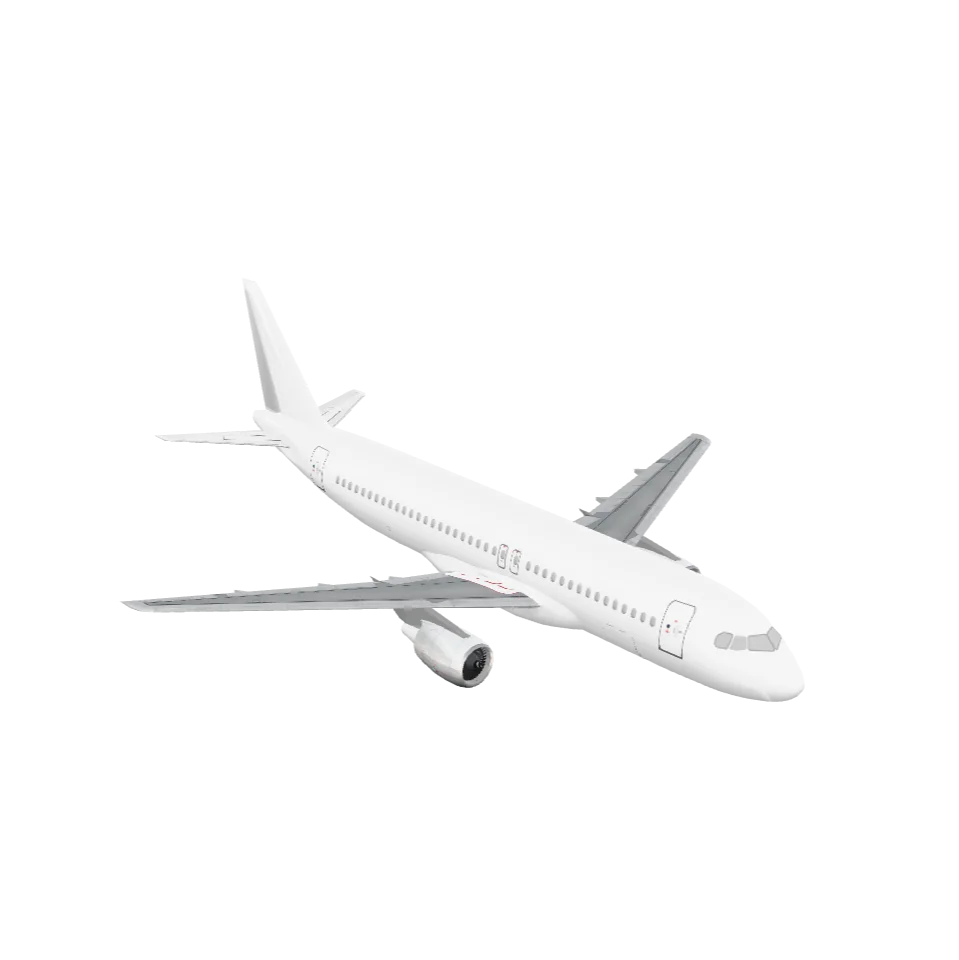
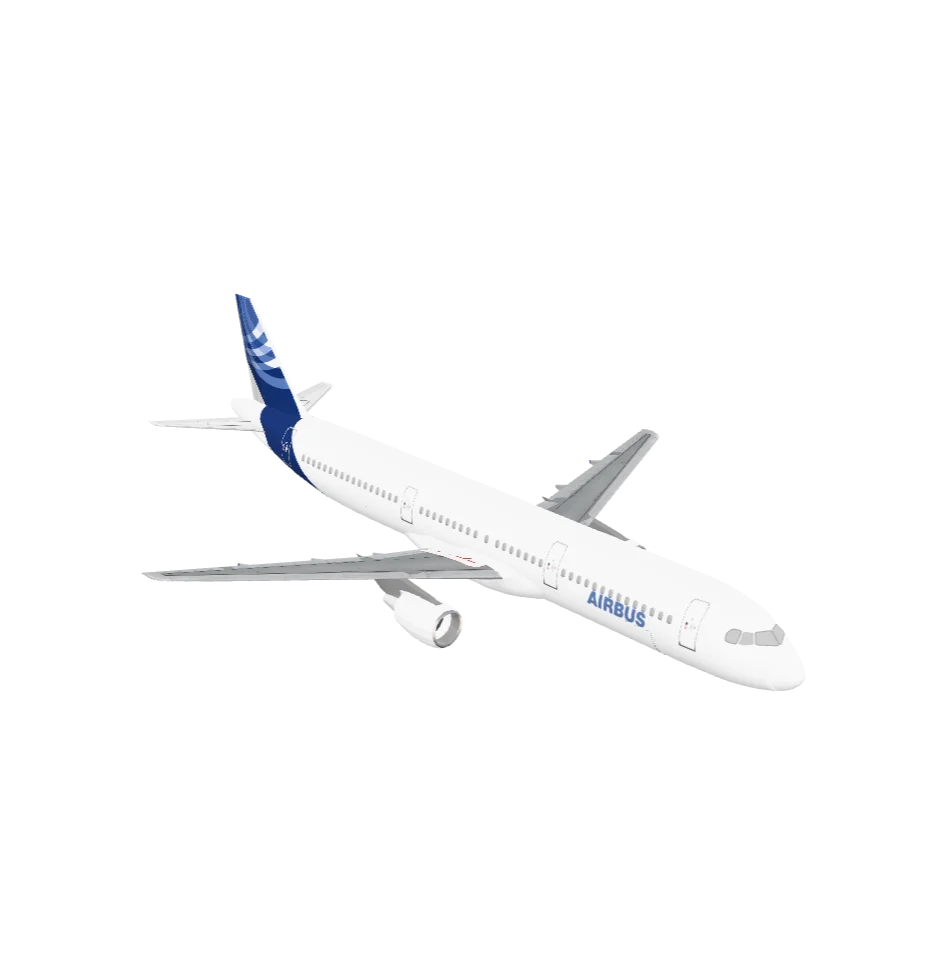
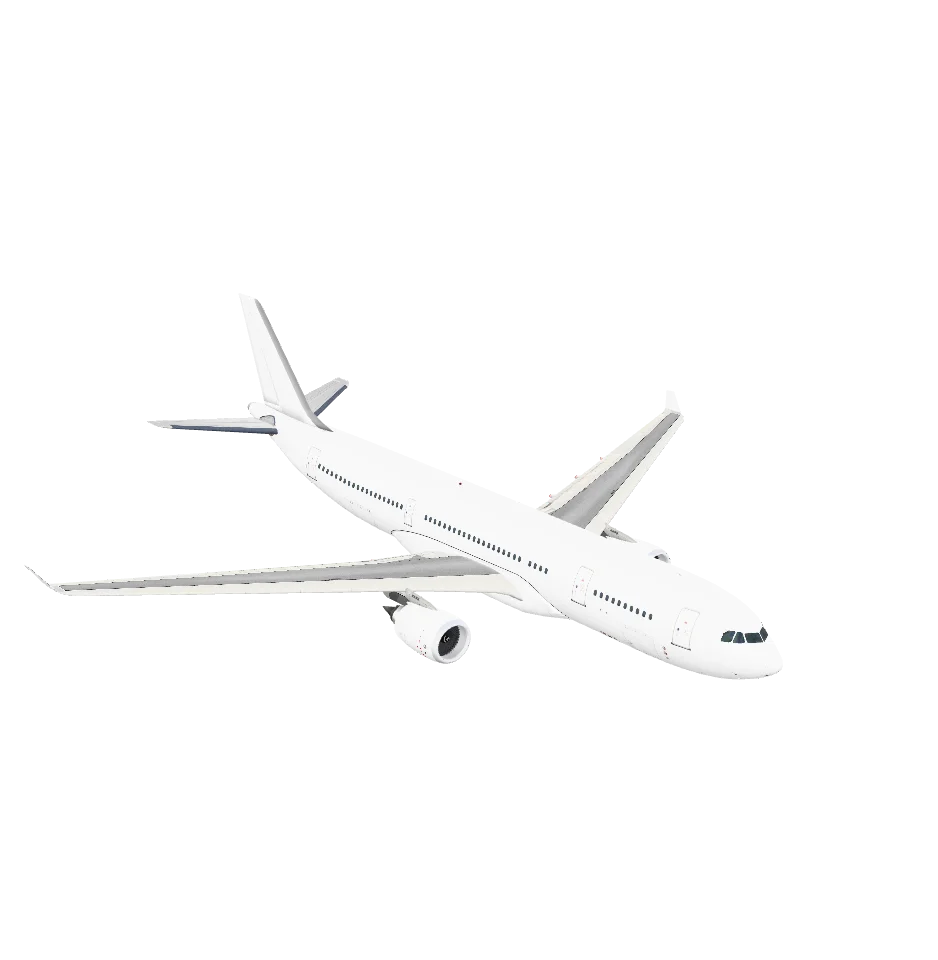
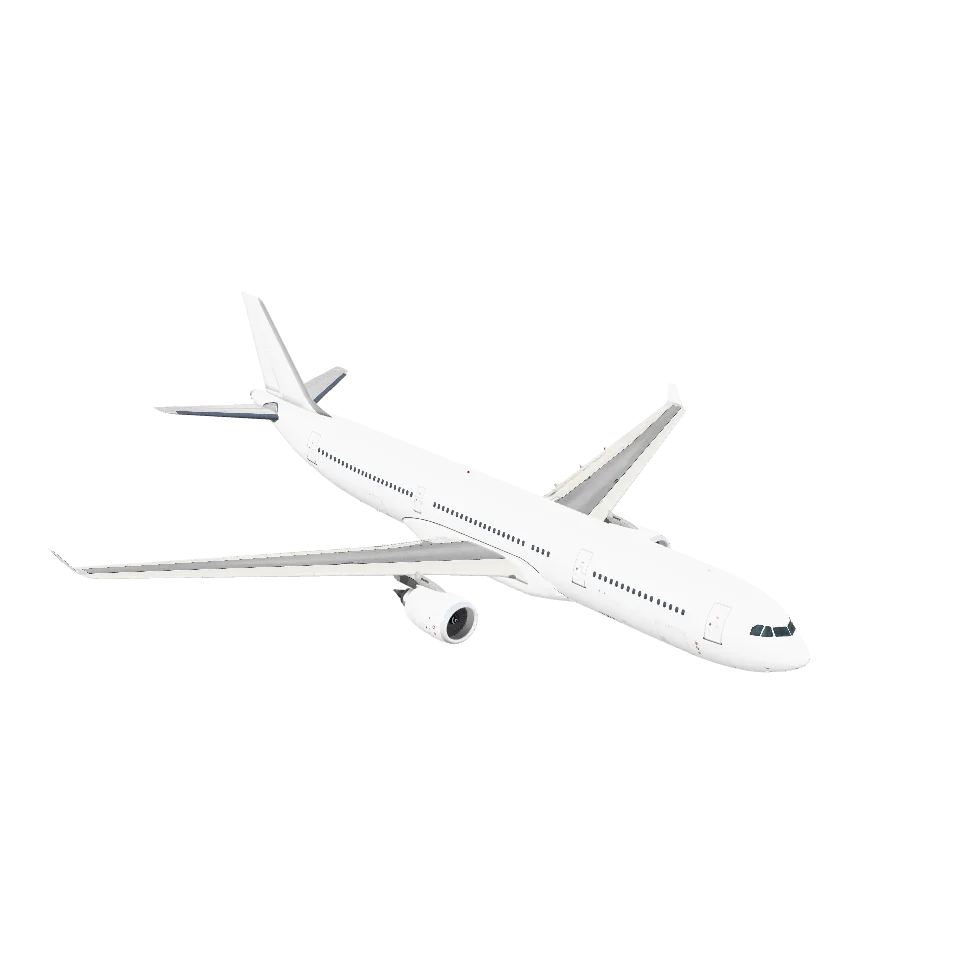
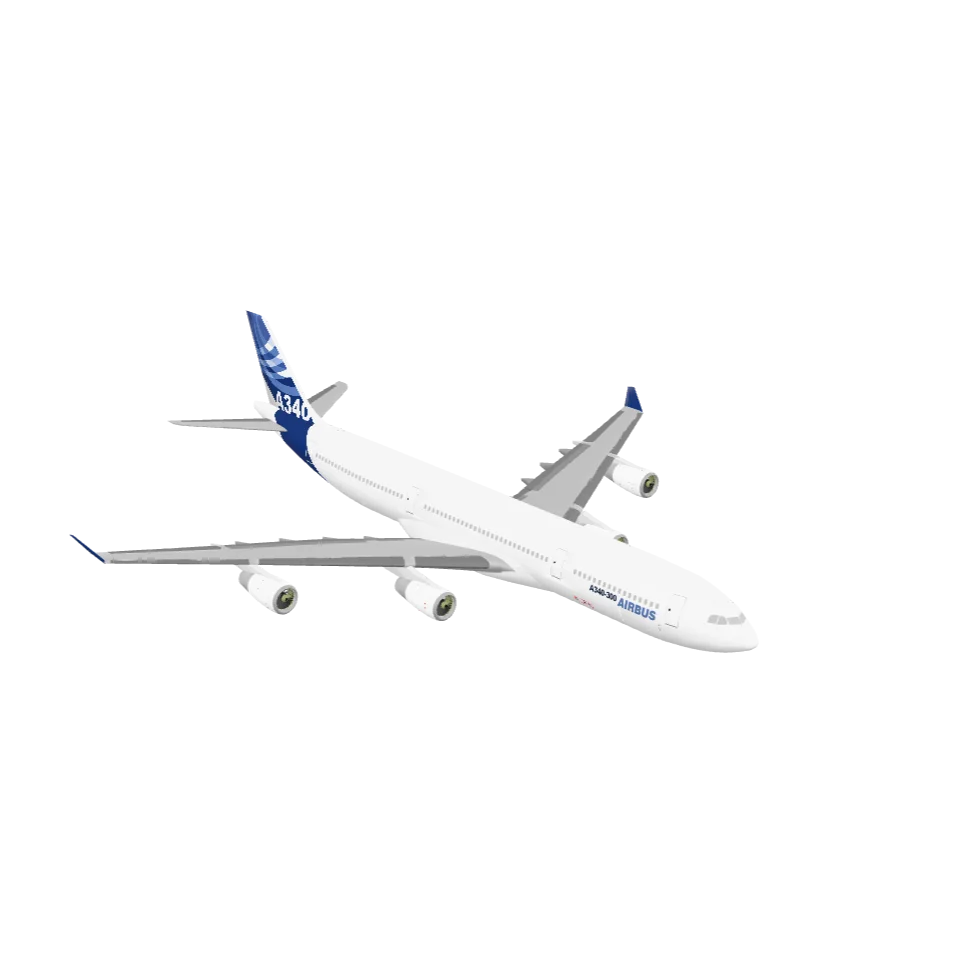
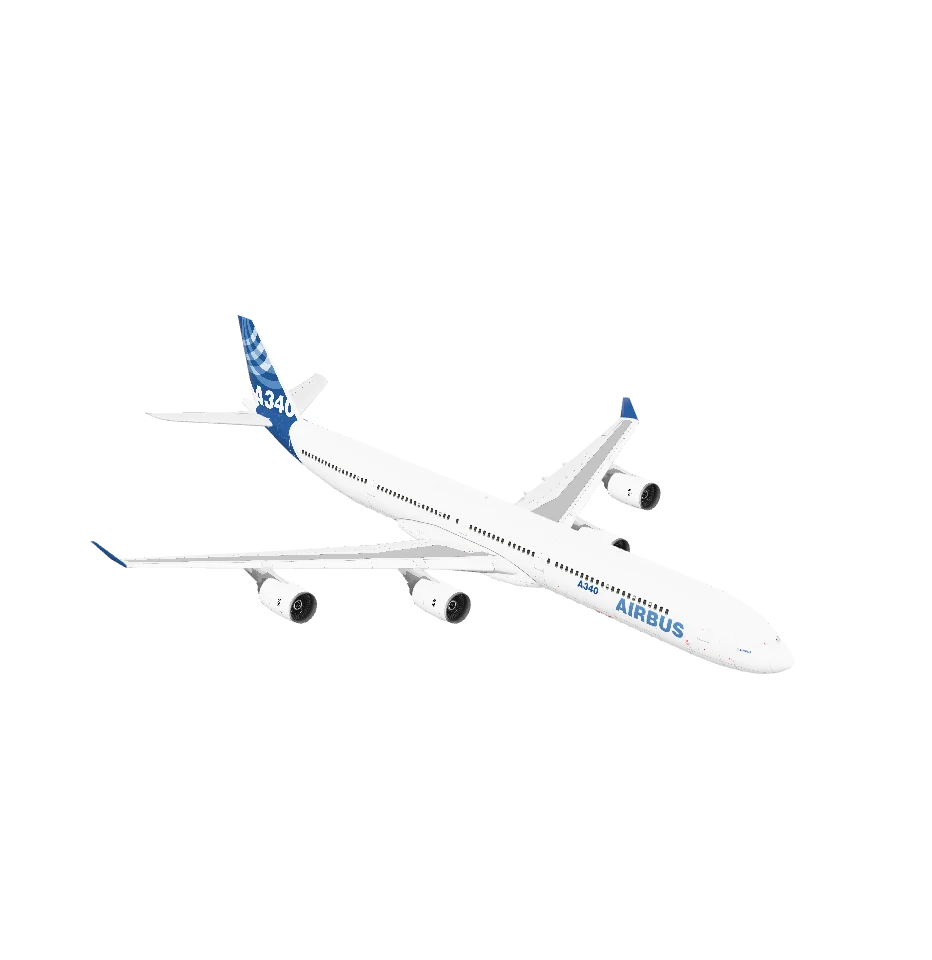
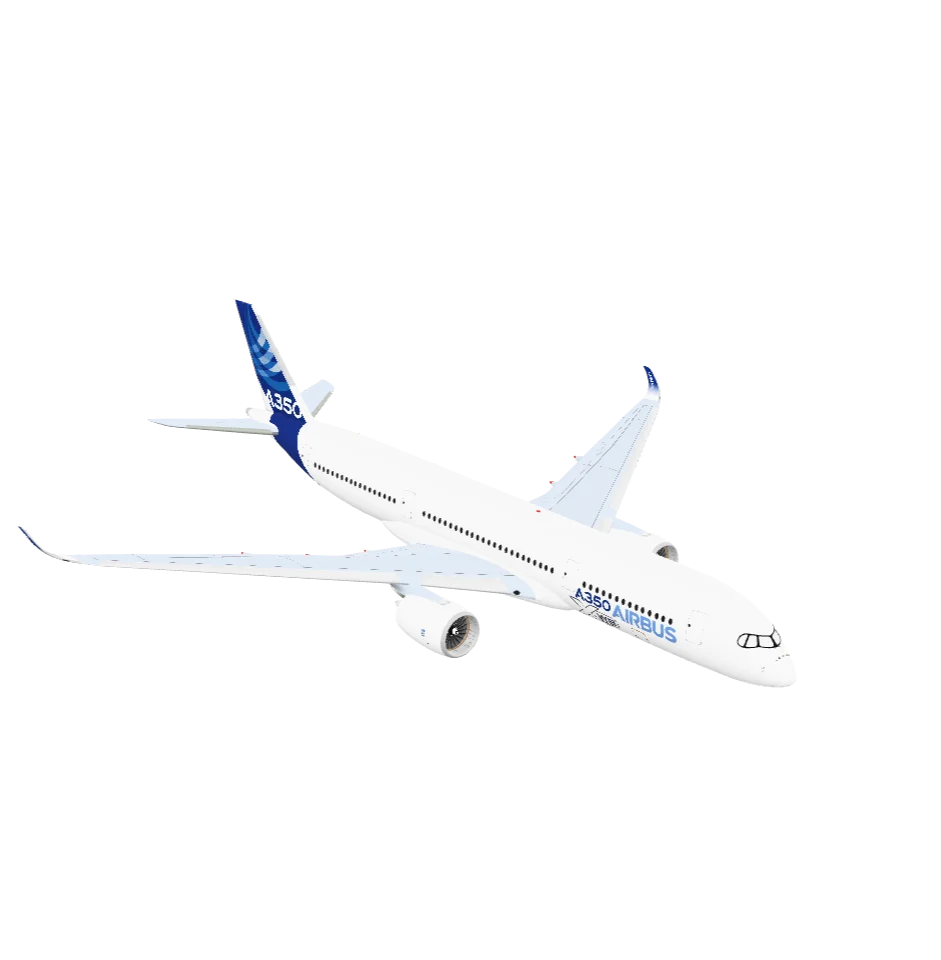
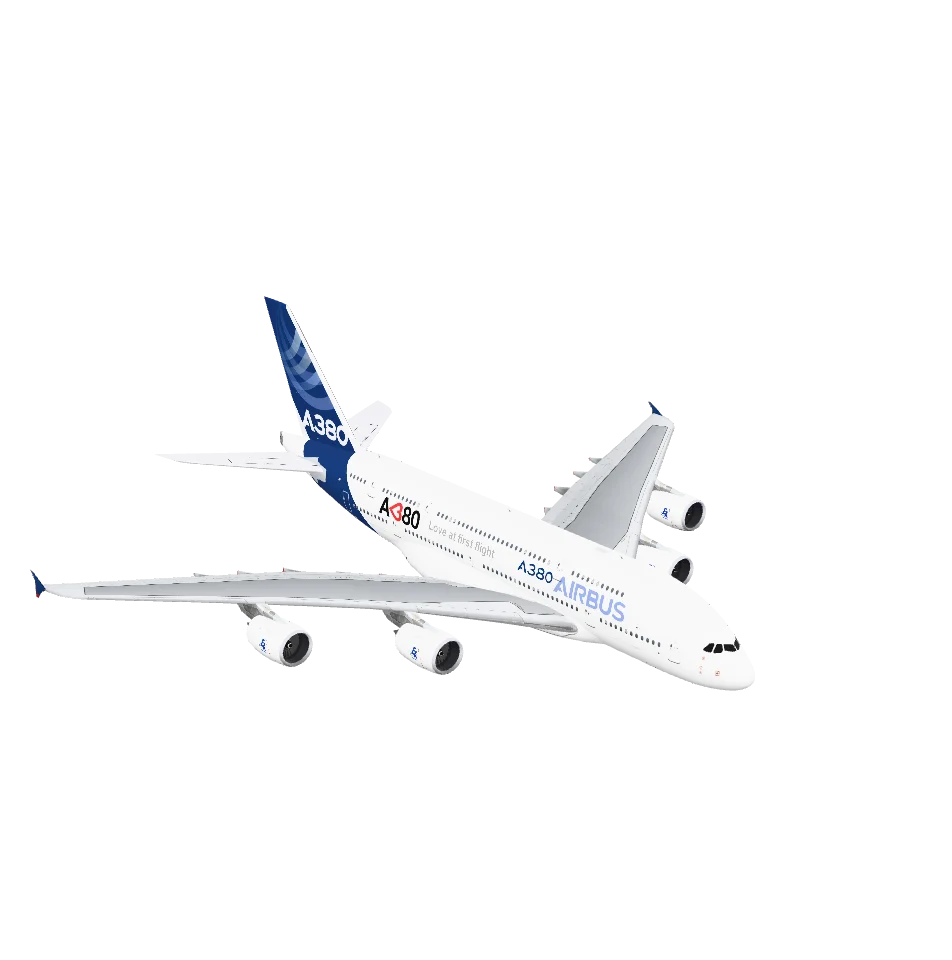
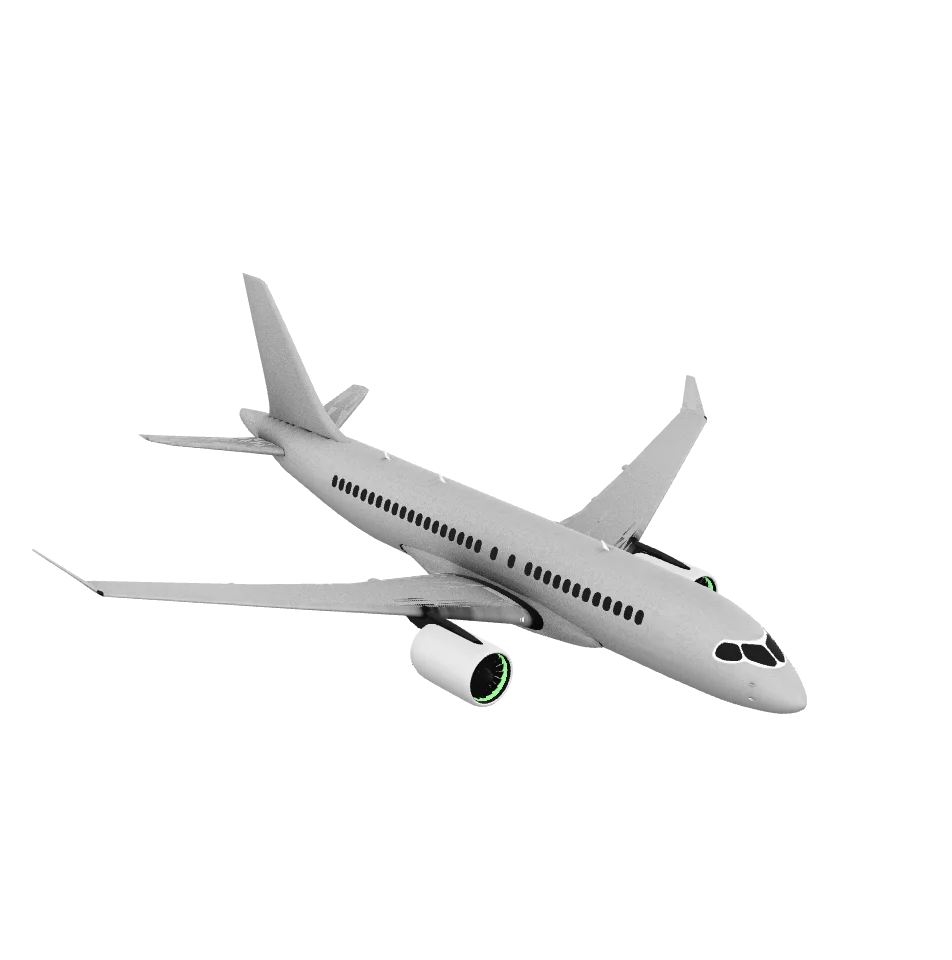
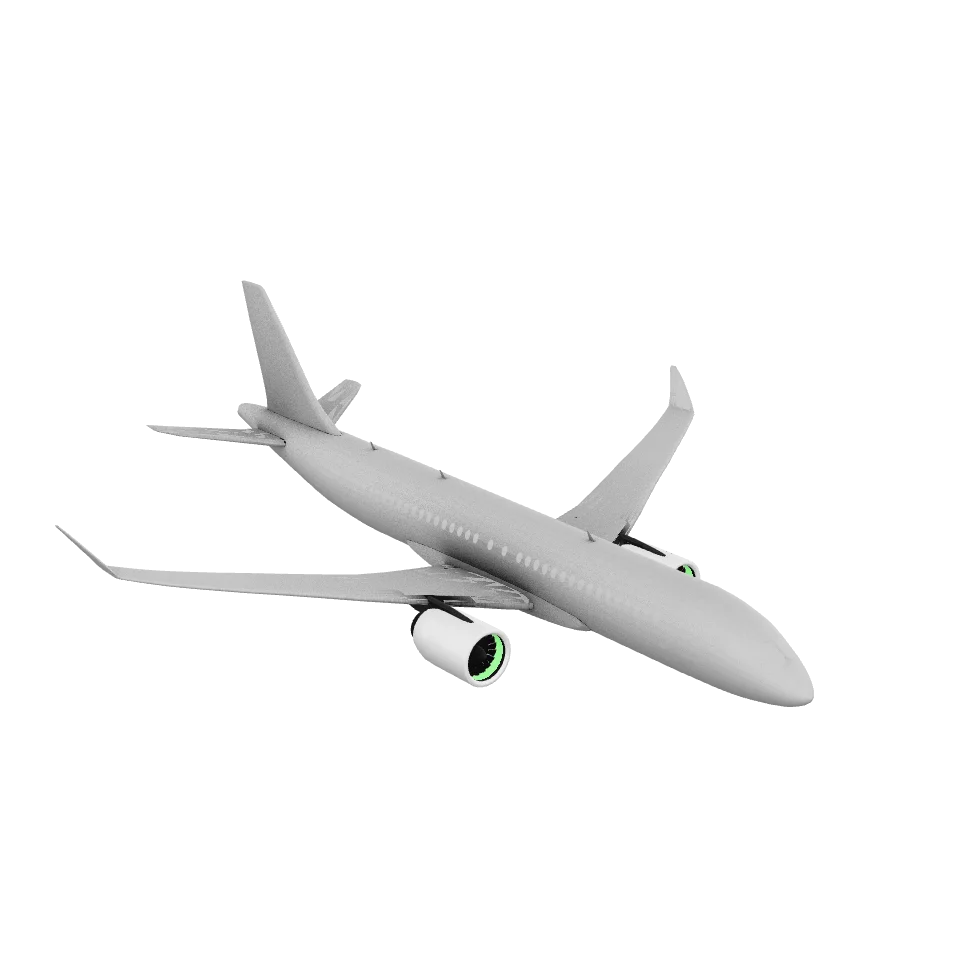
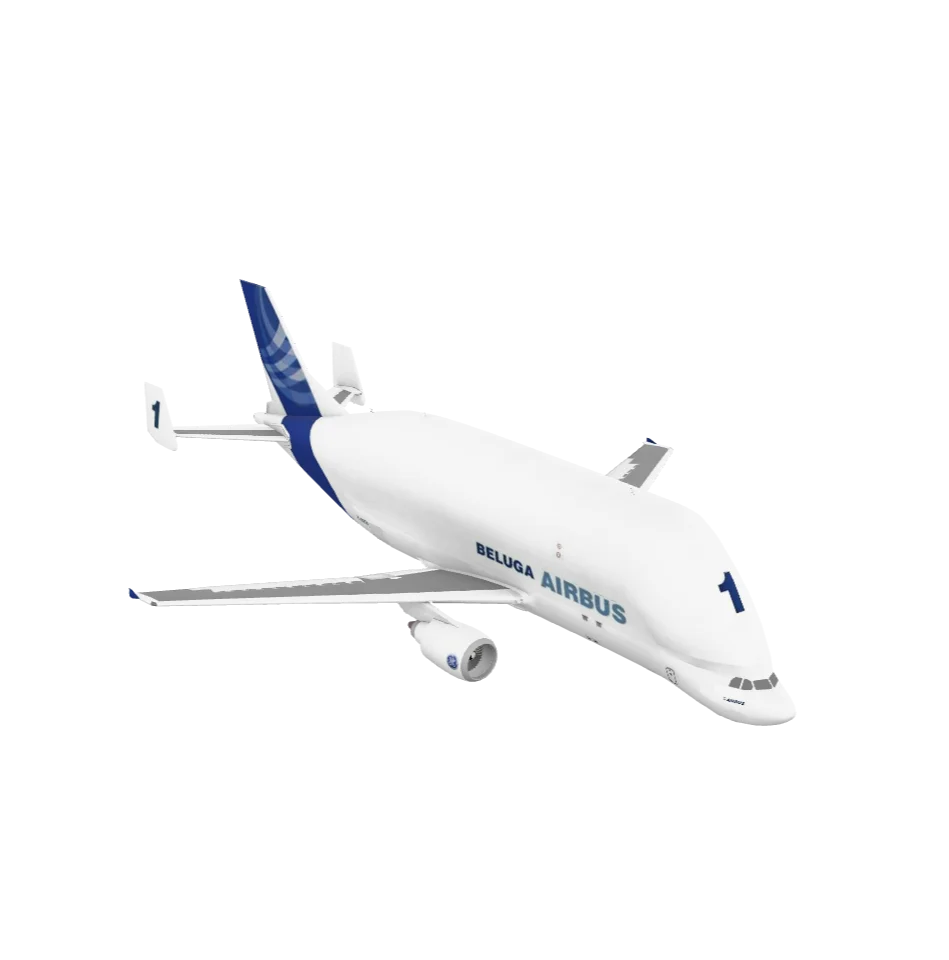
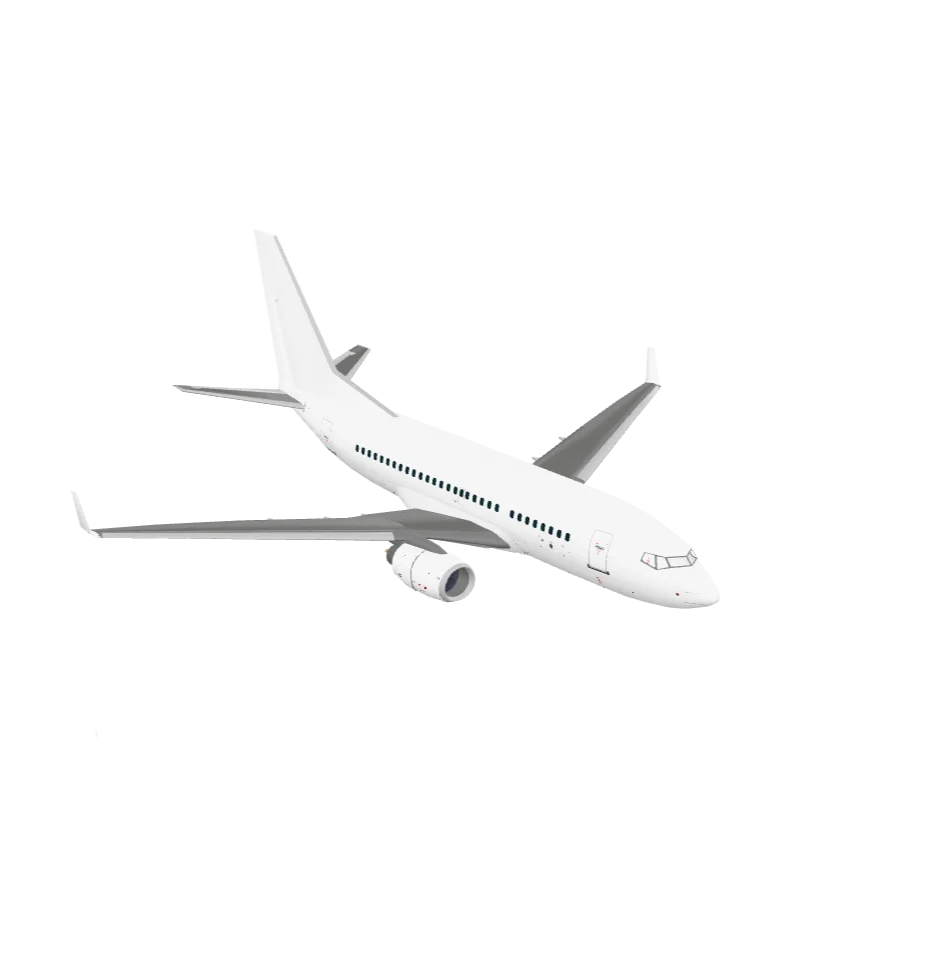
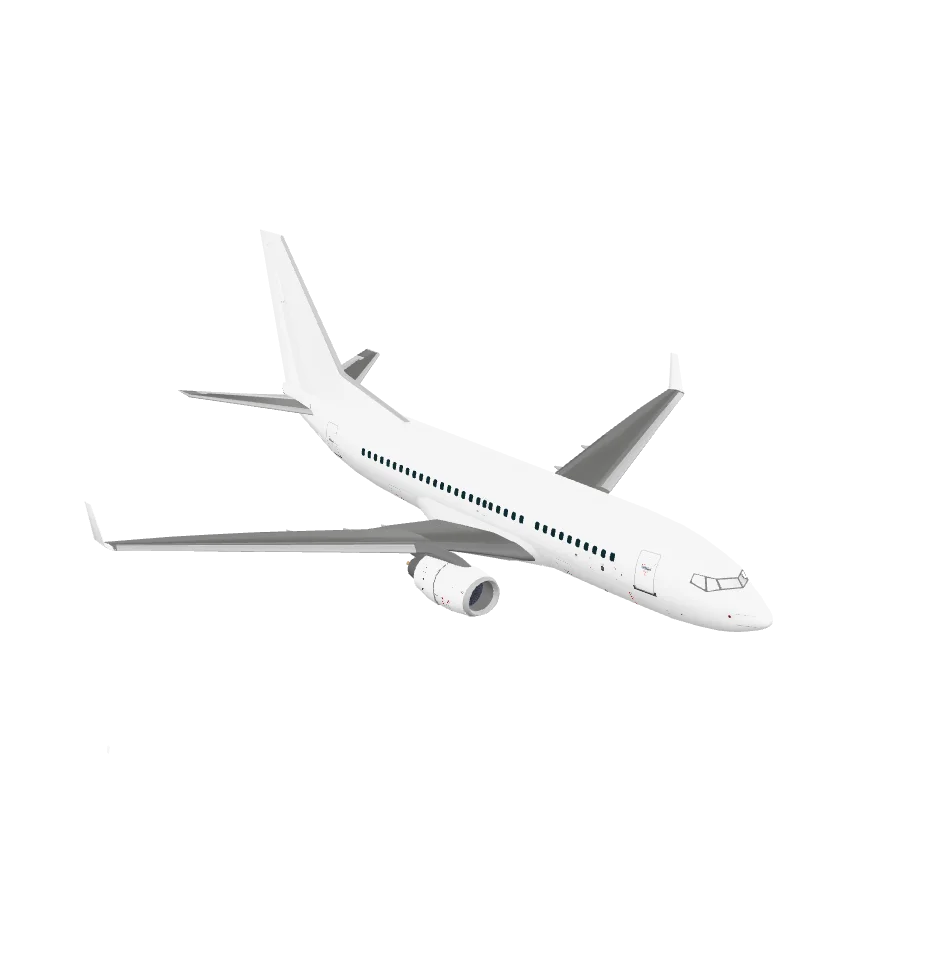
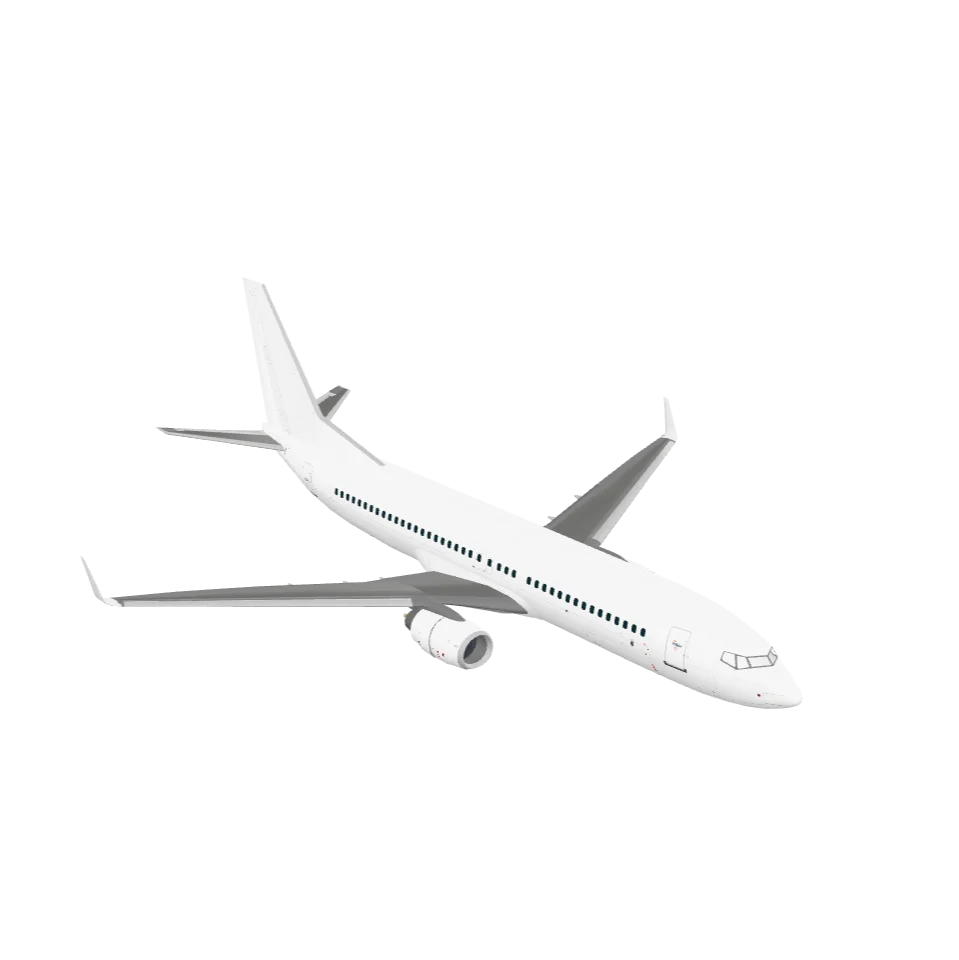
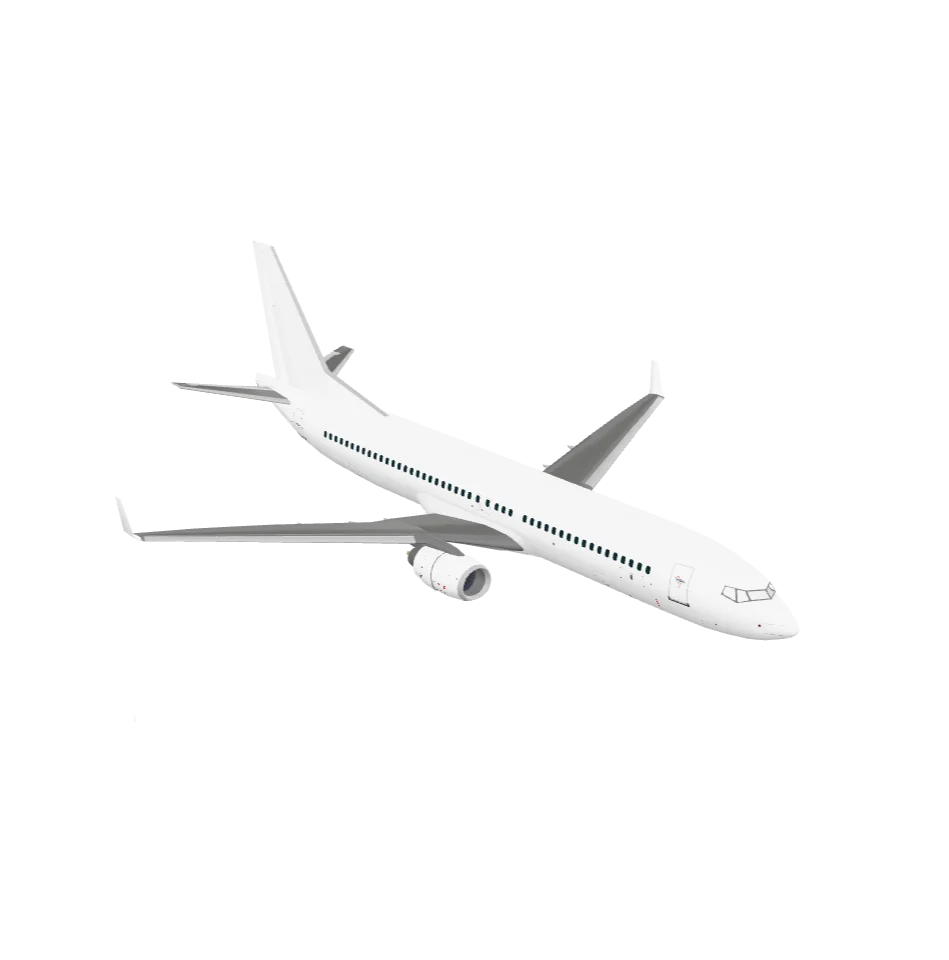
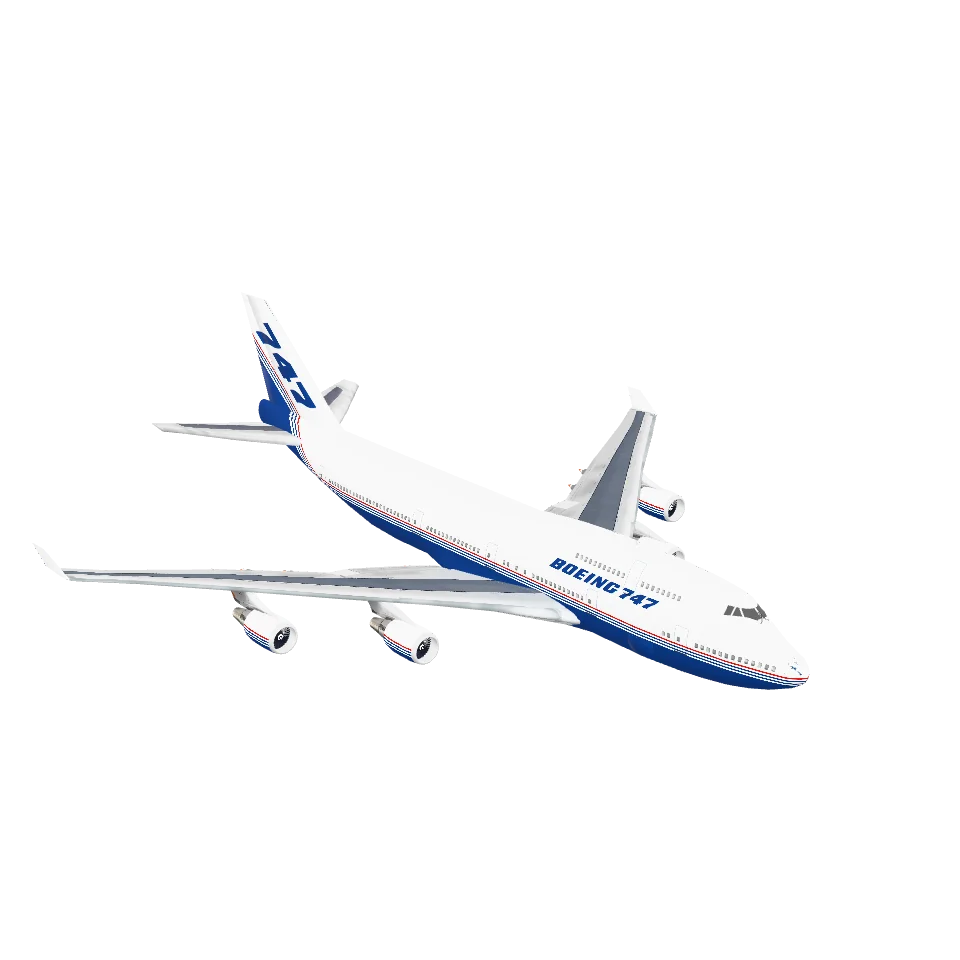
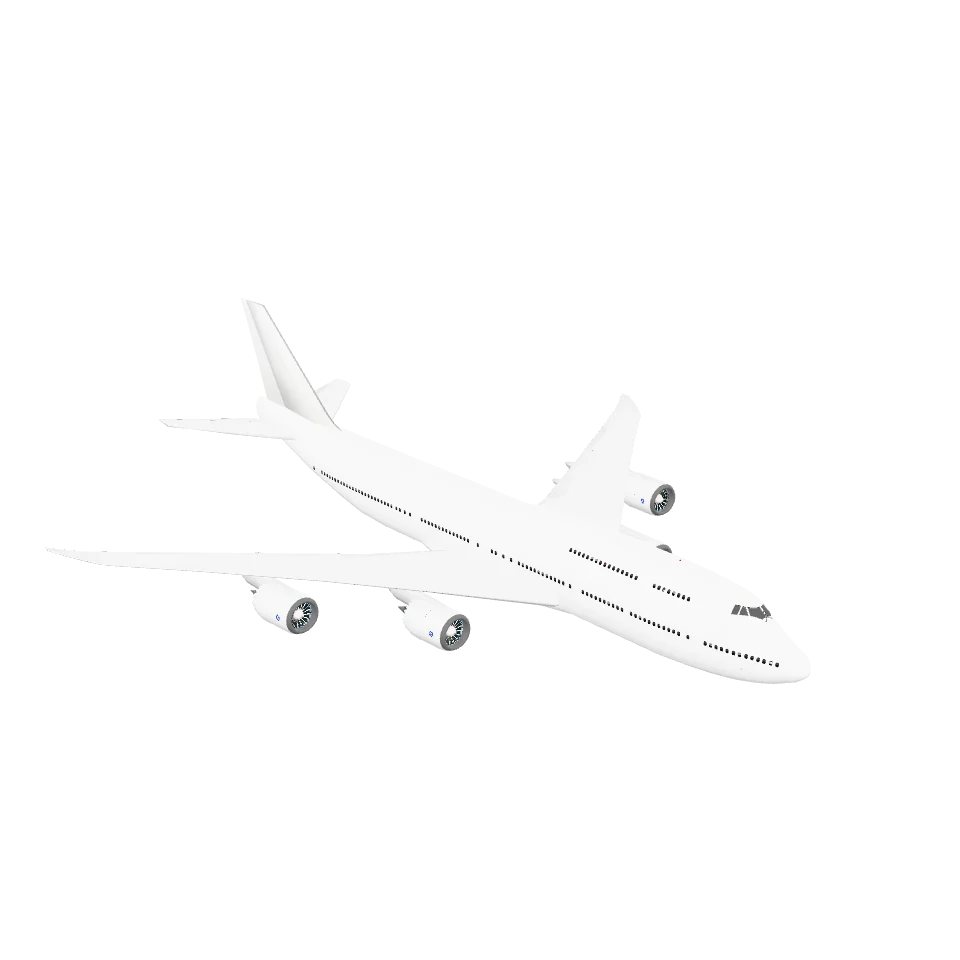
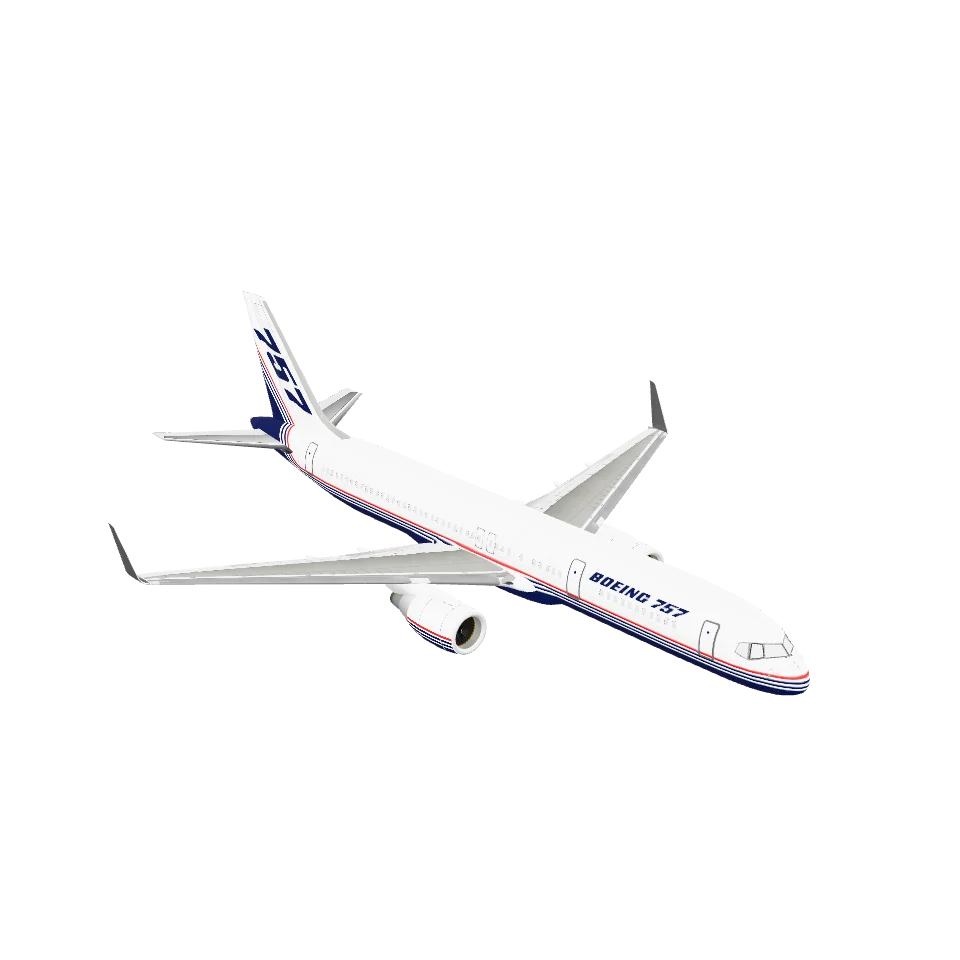
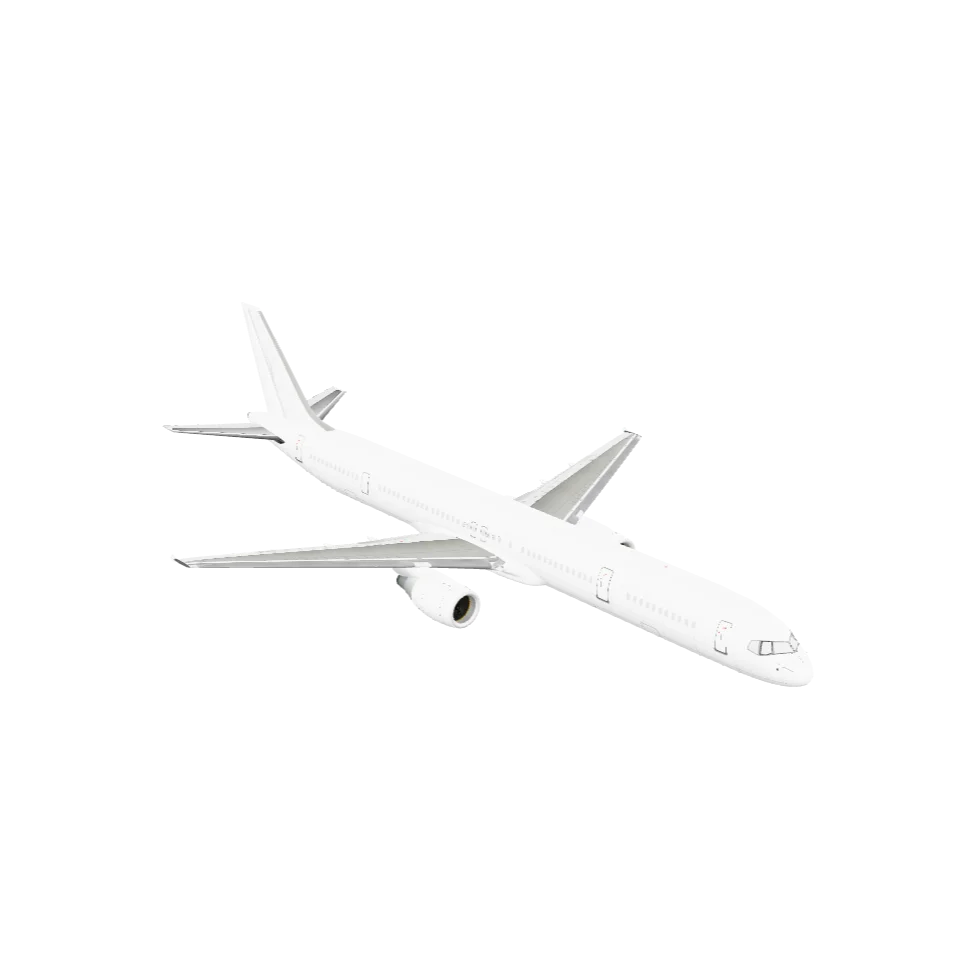
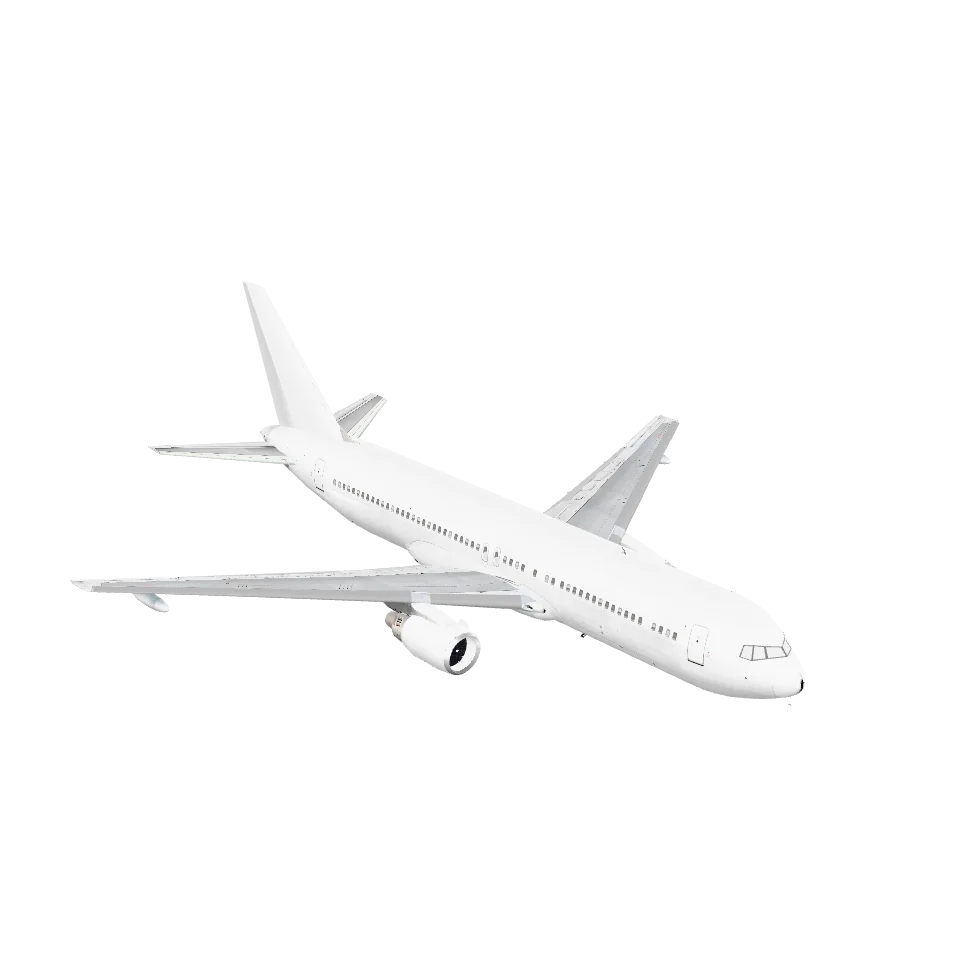
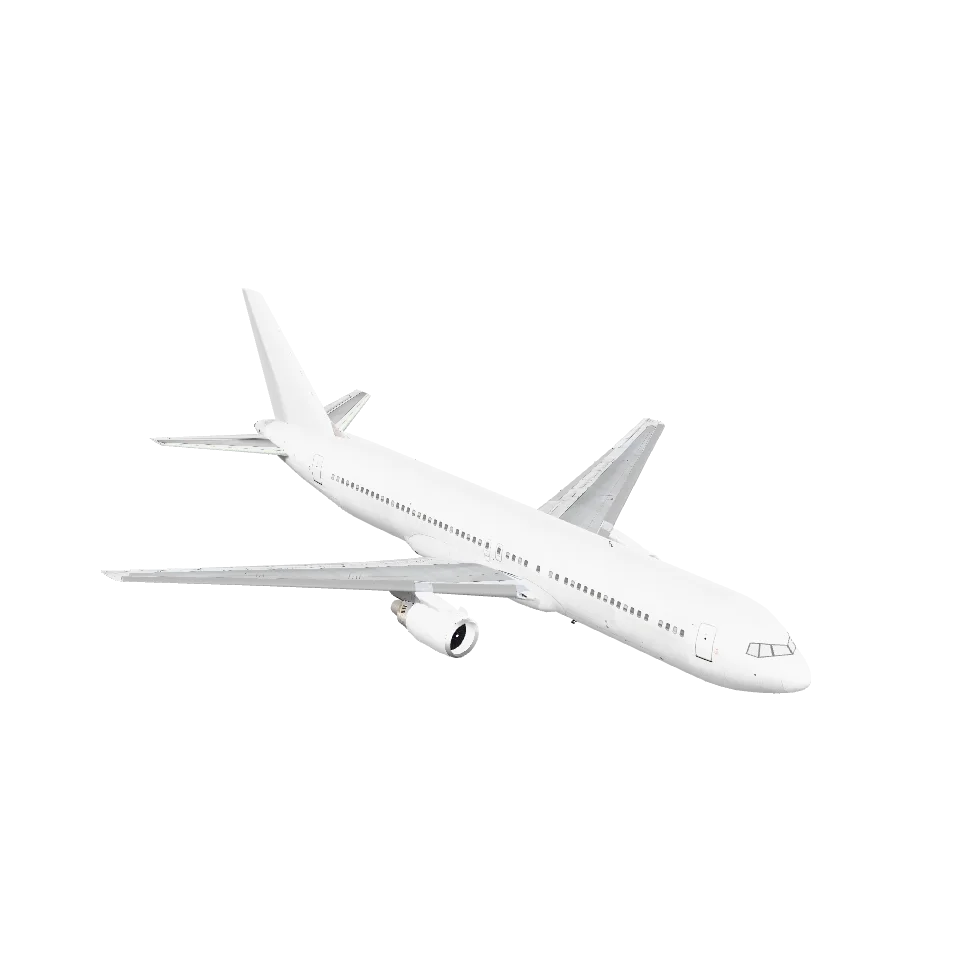
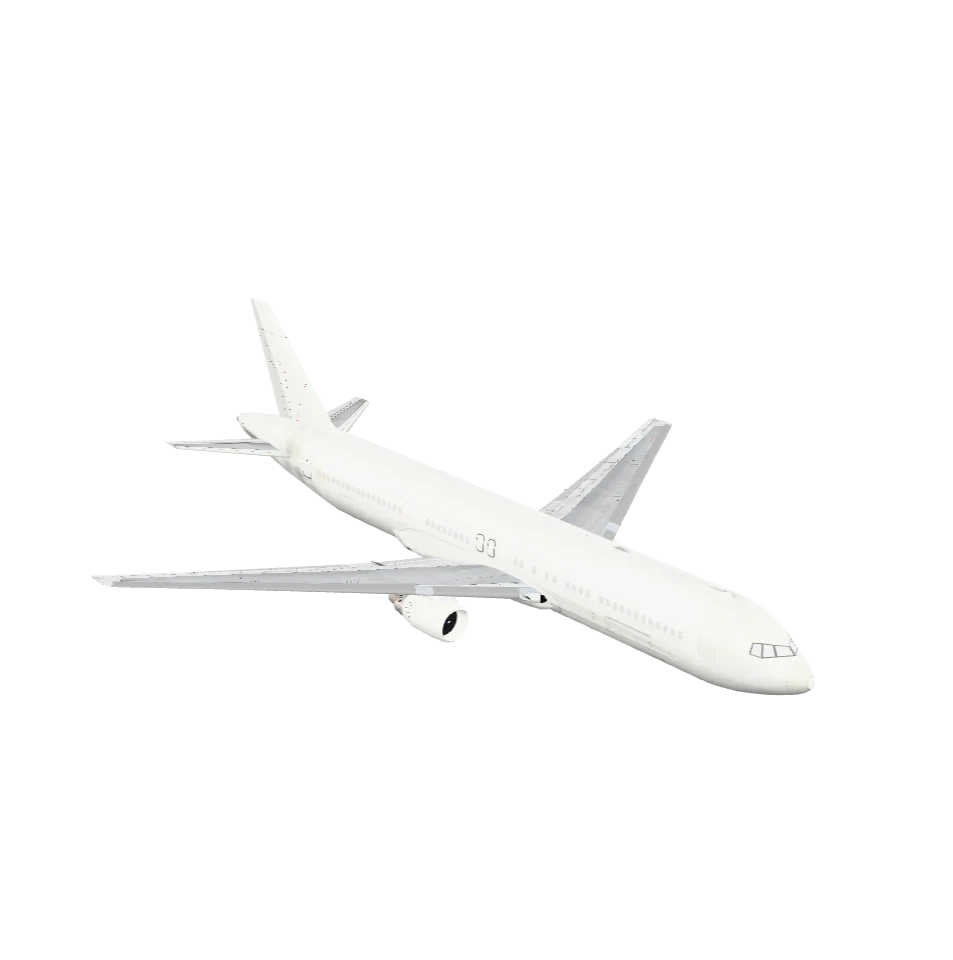
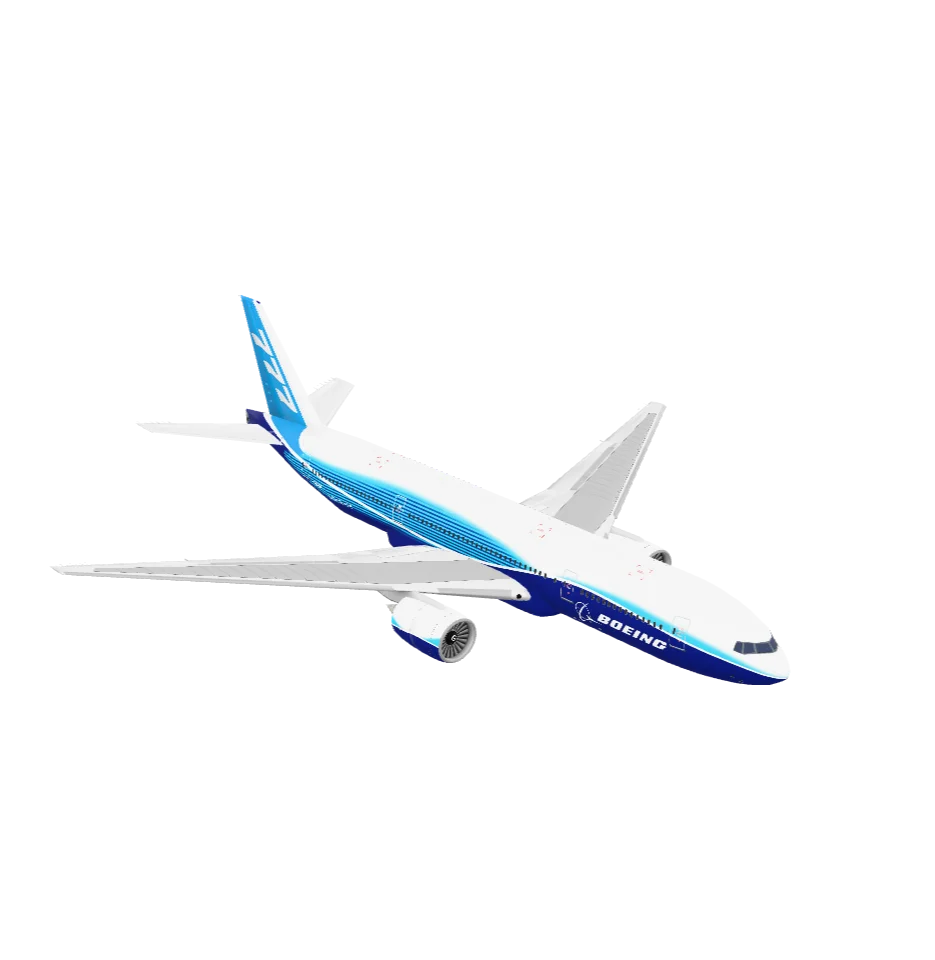
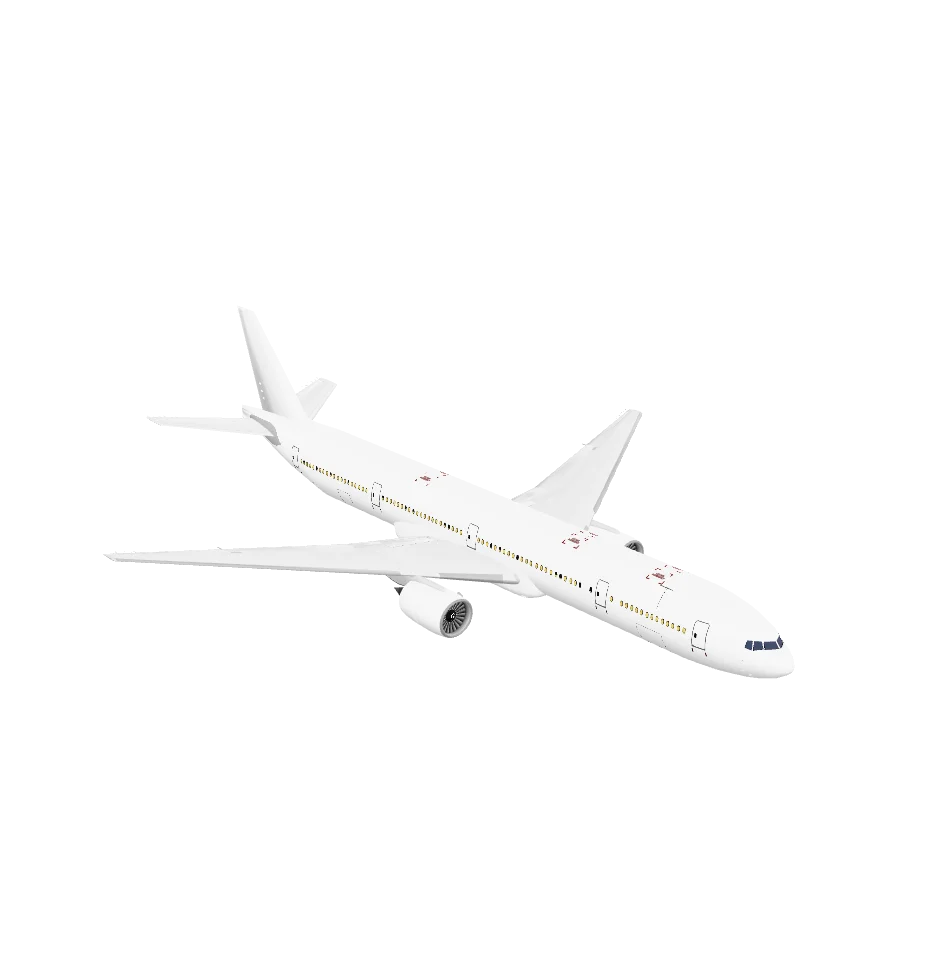
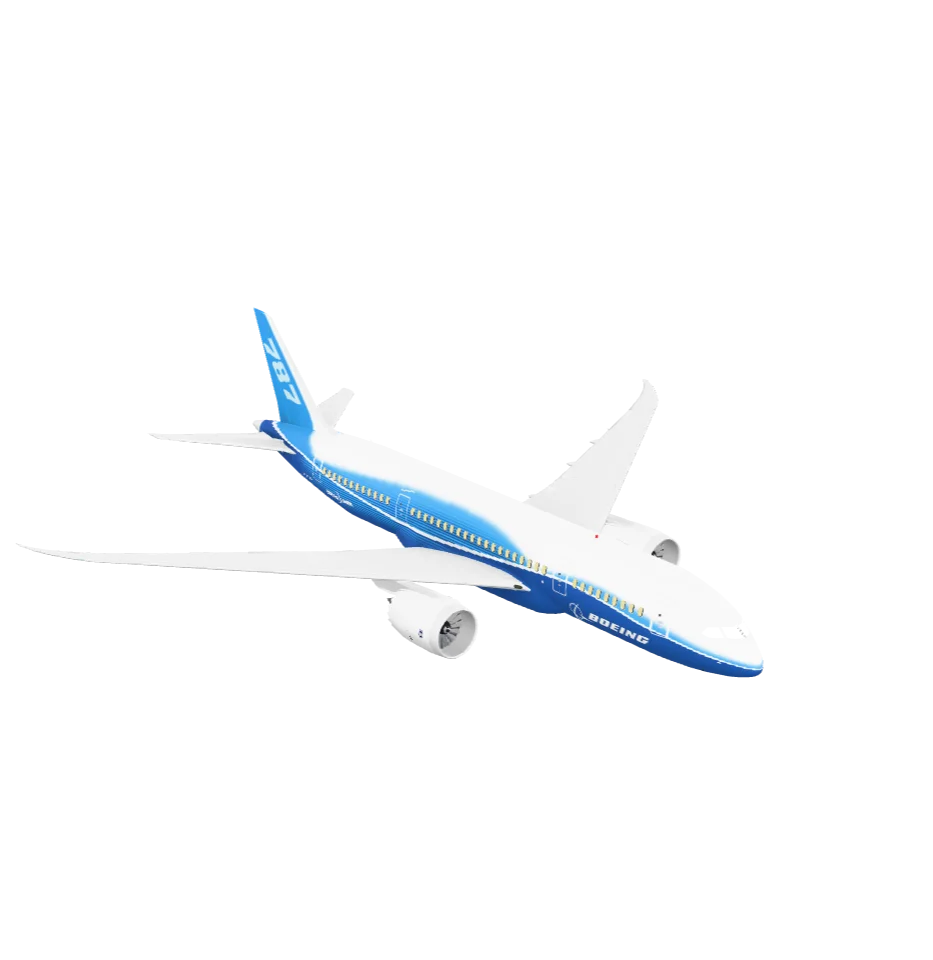
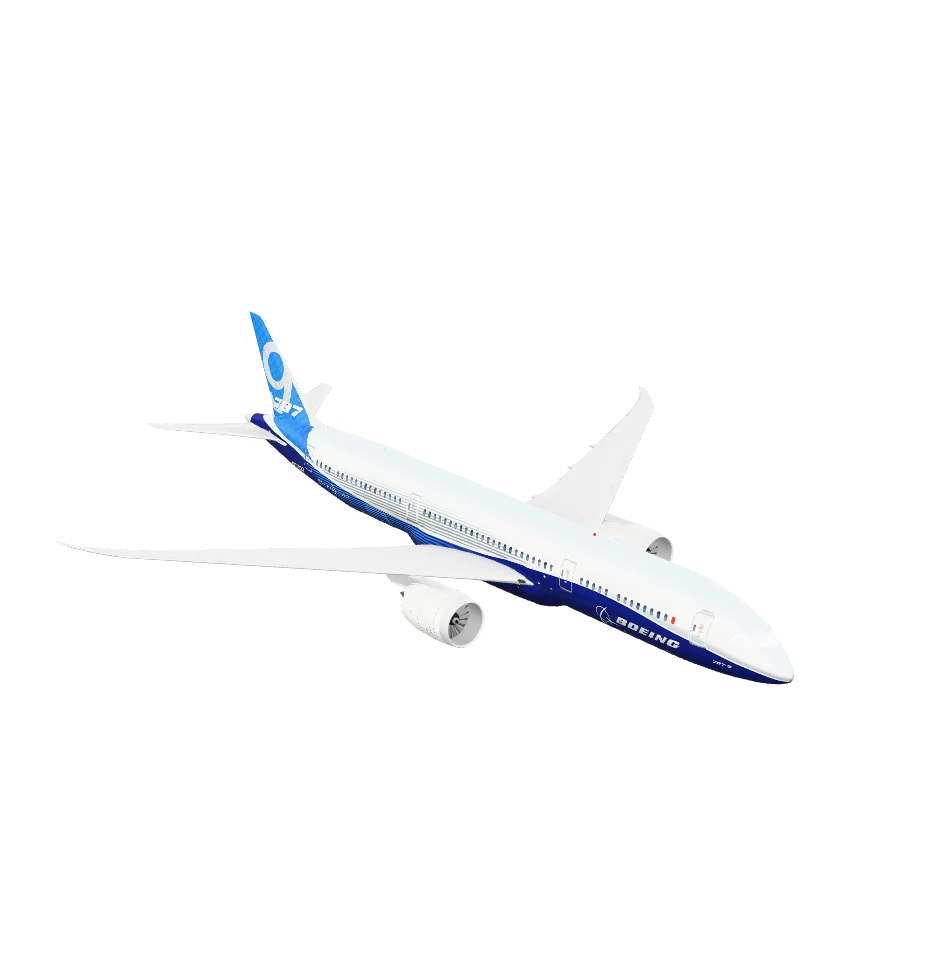
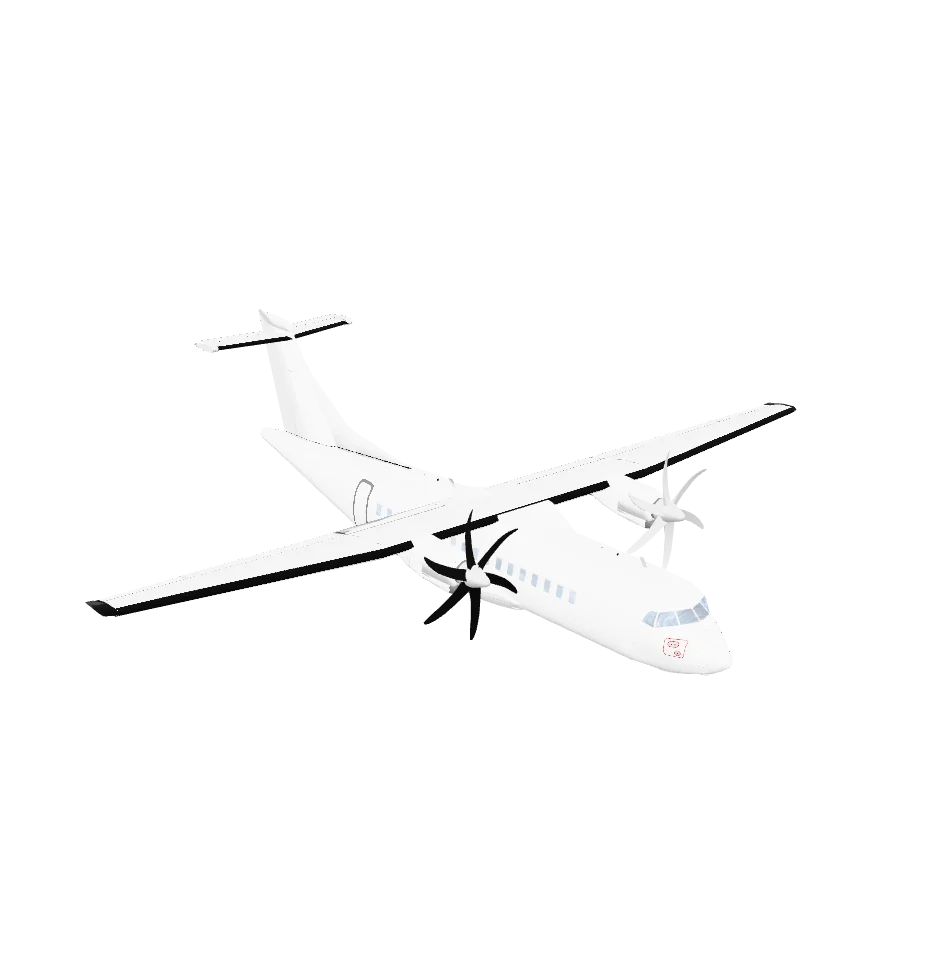
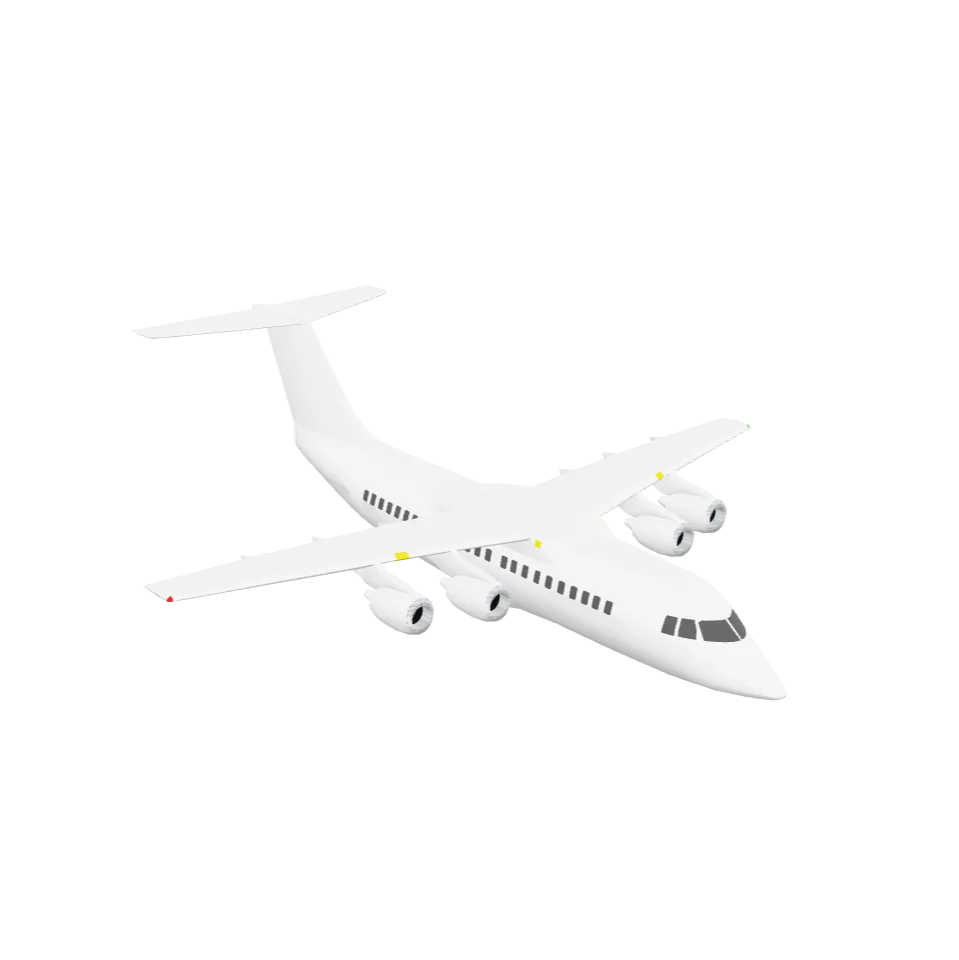
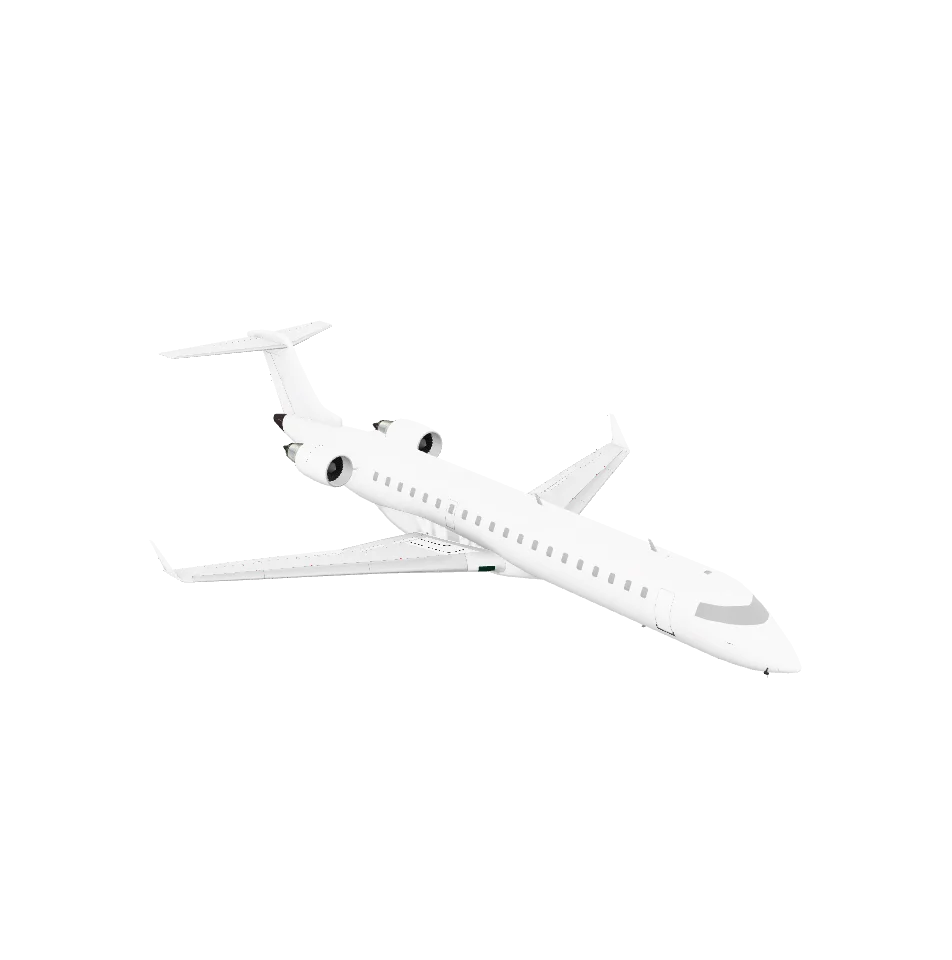
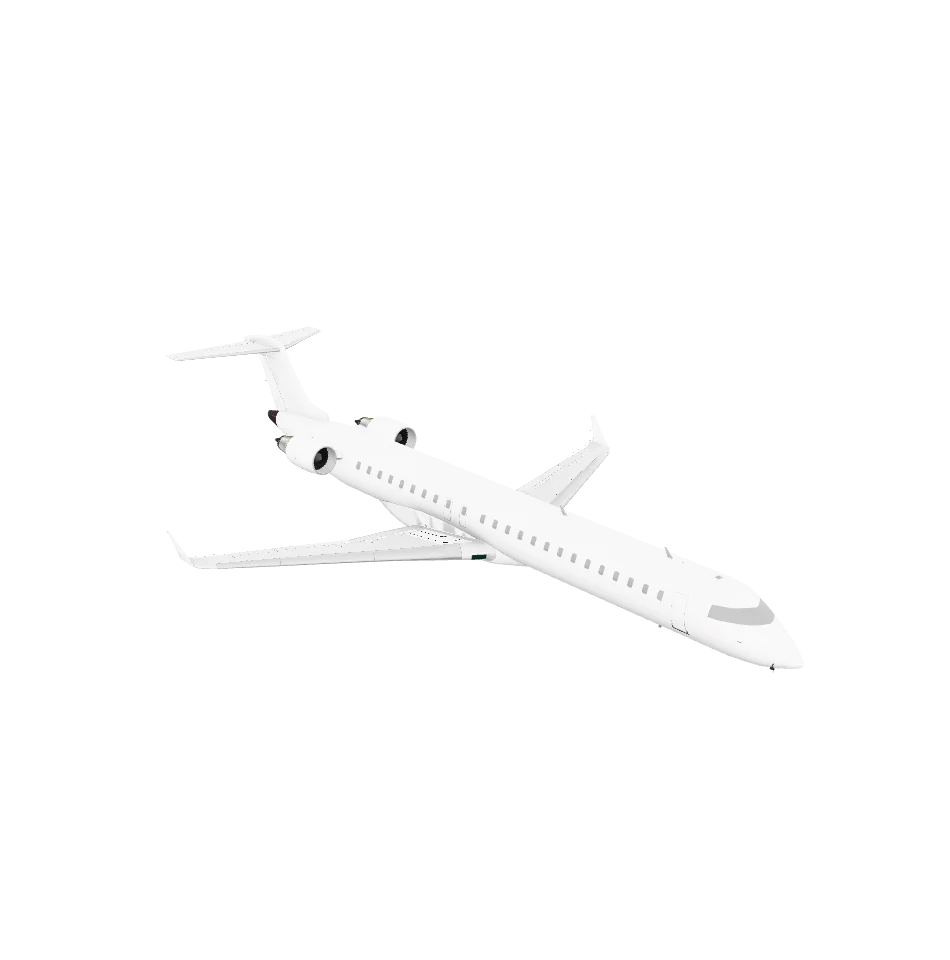
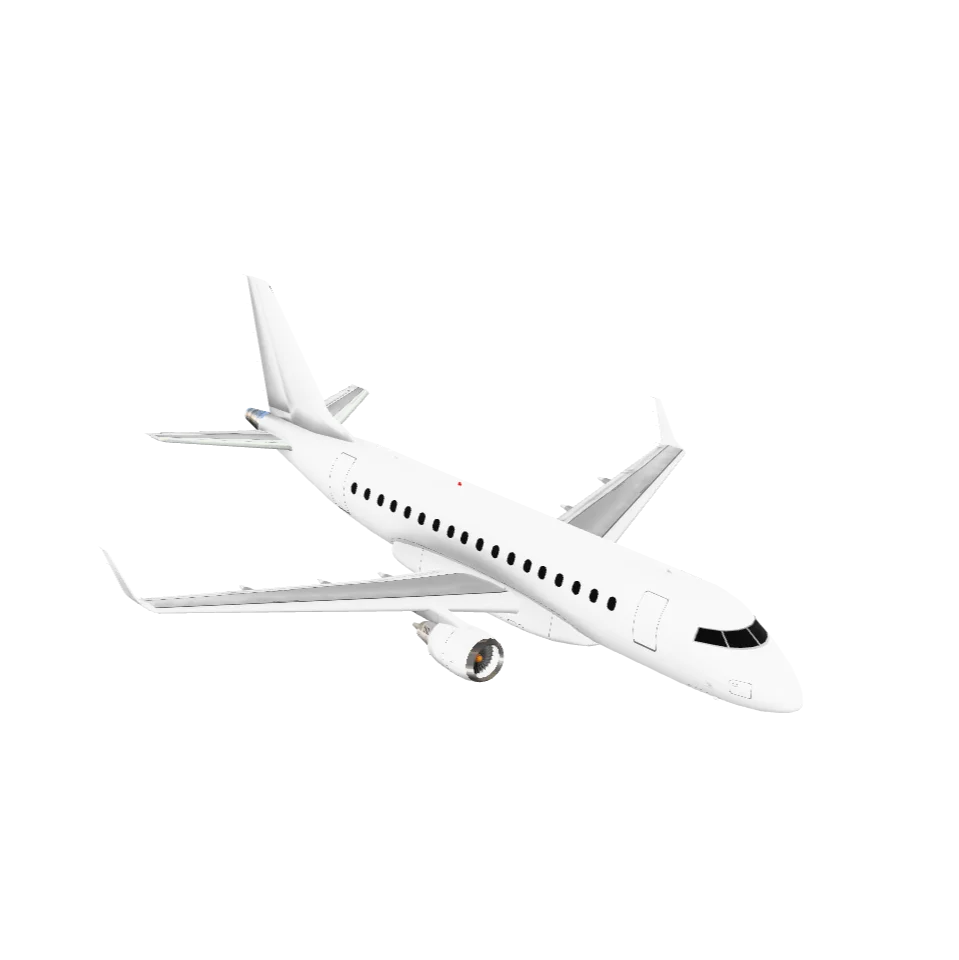
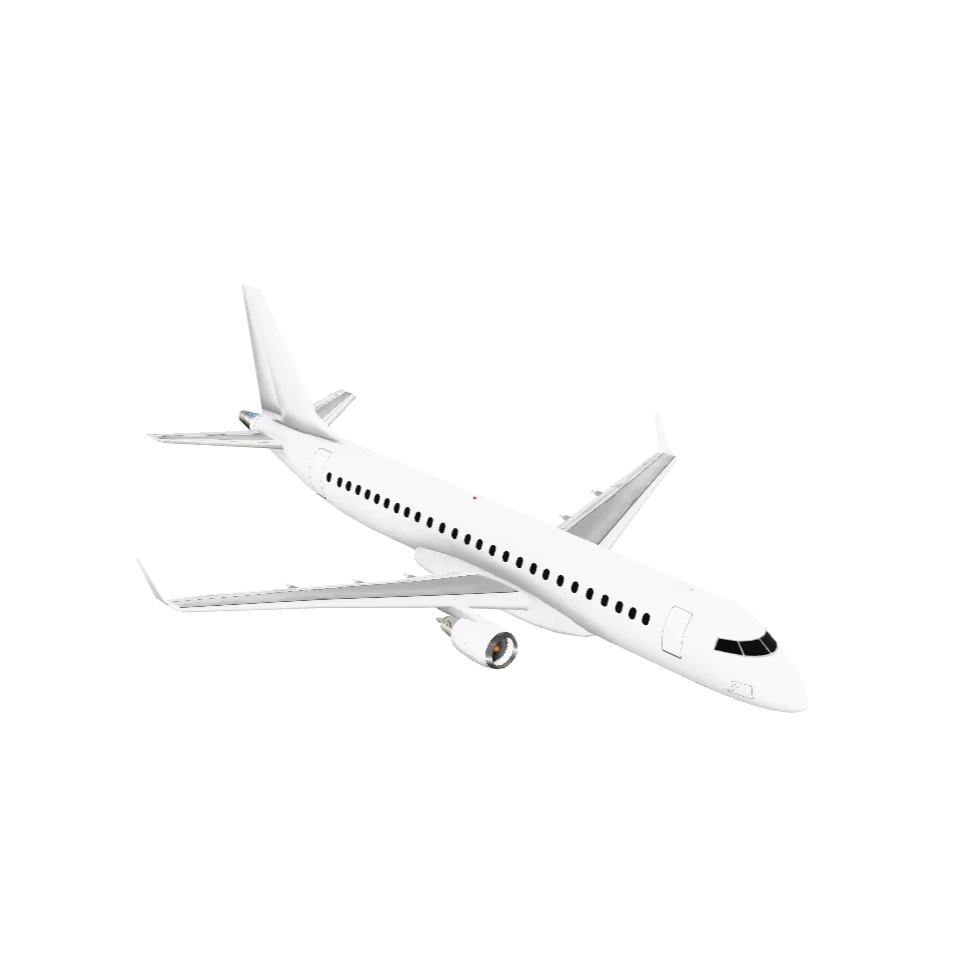
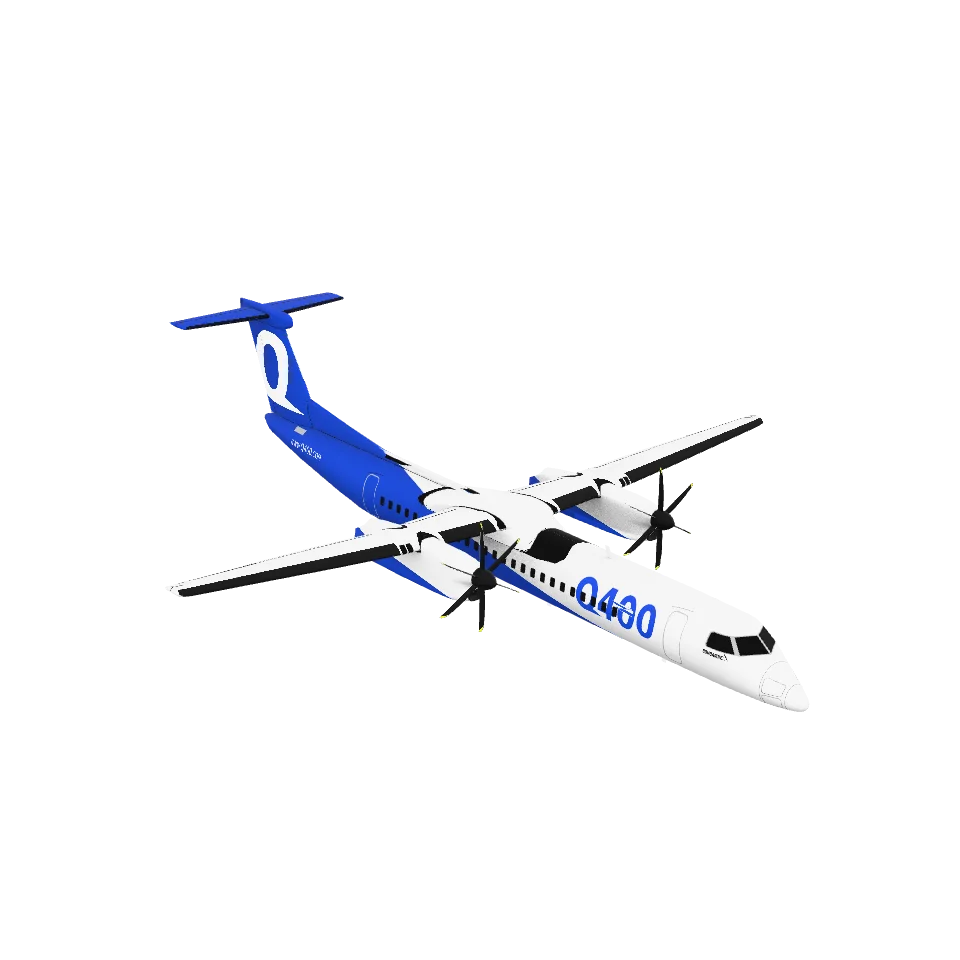
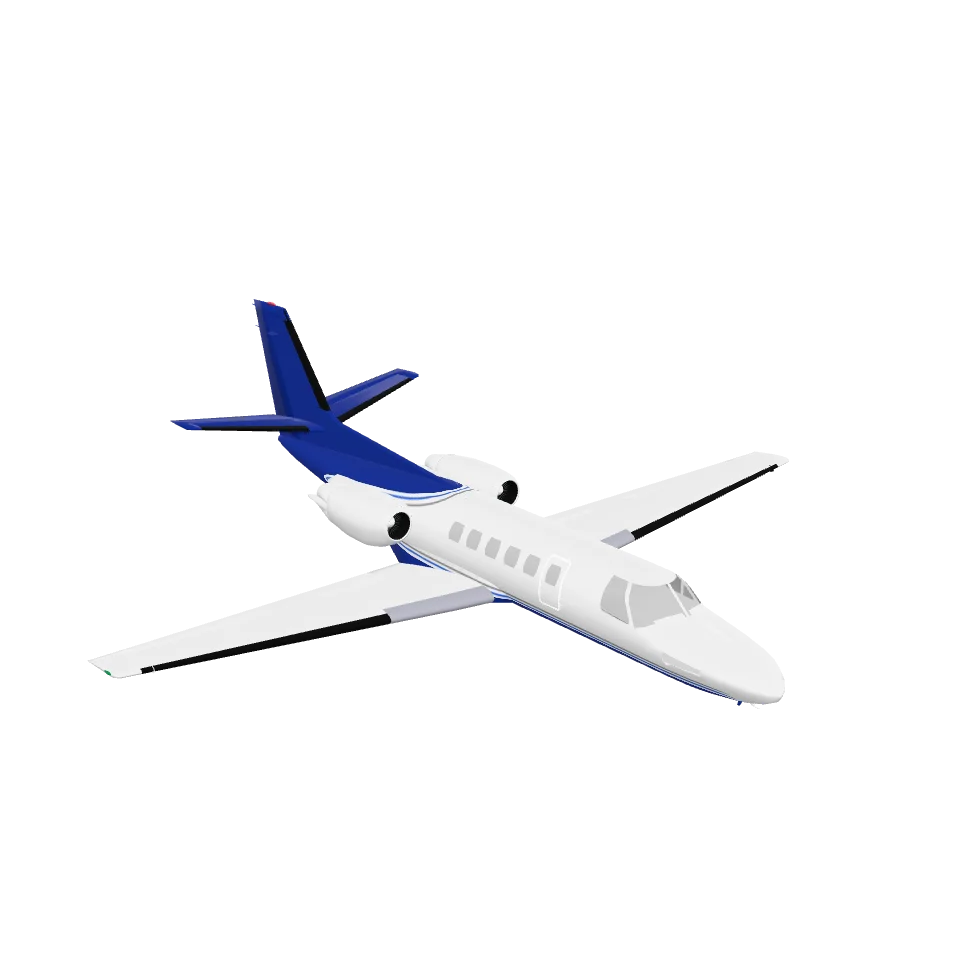
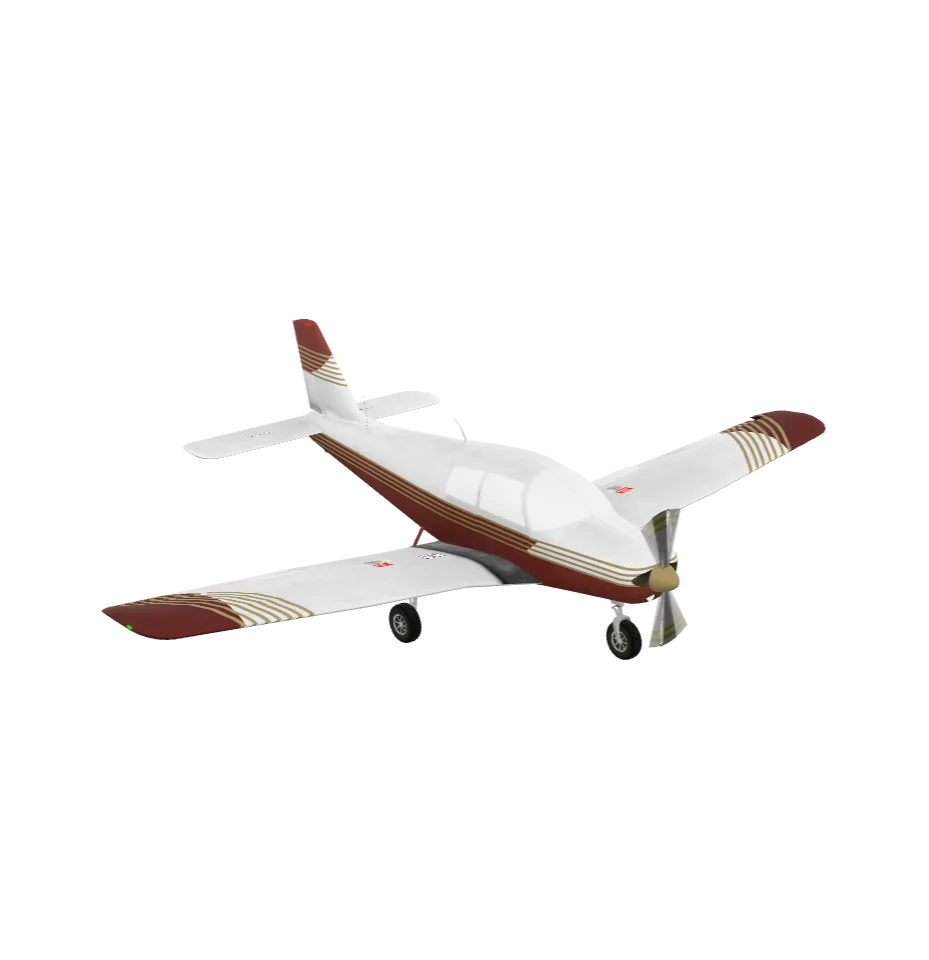
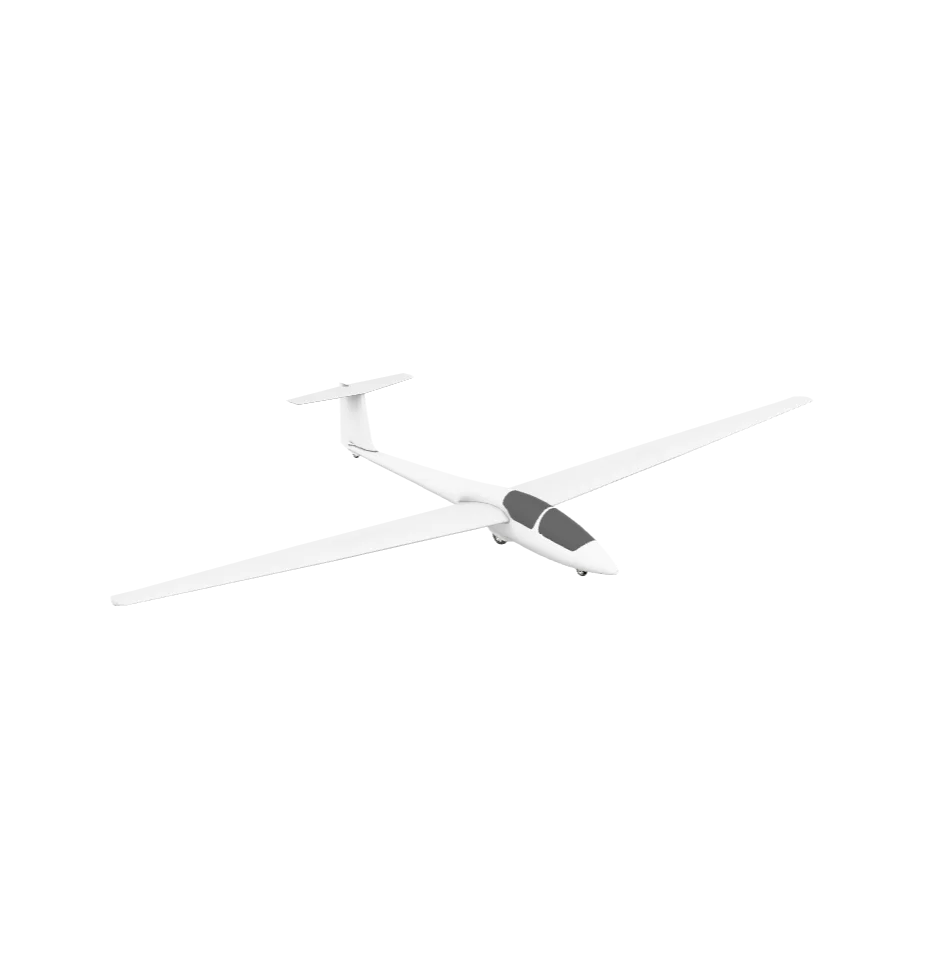
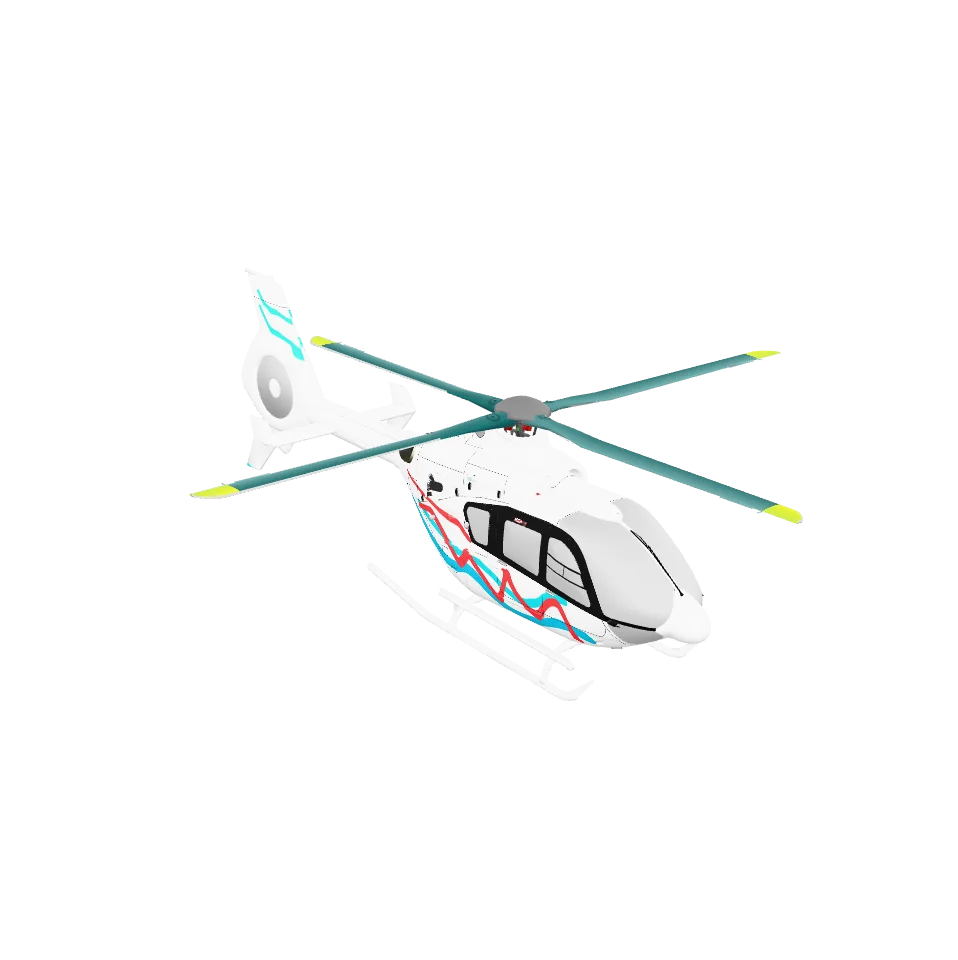
- Aircraft – airliners, small planes, and helicopters (with spinning propellers and rotors) that bank and tilt as they fly.
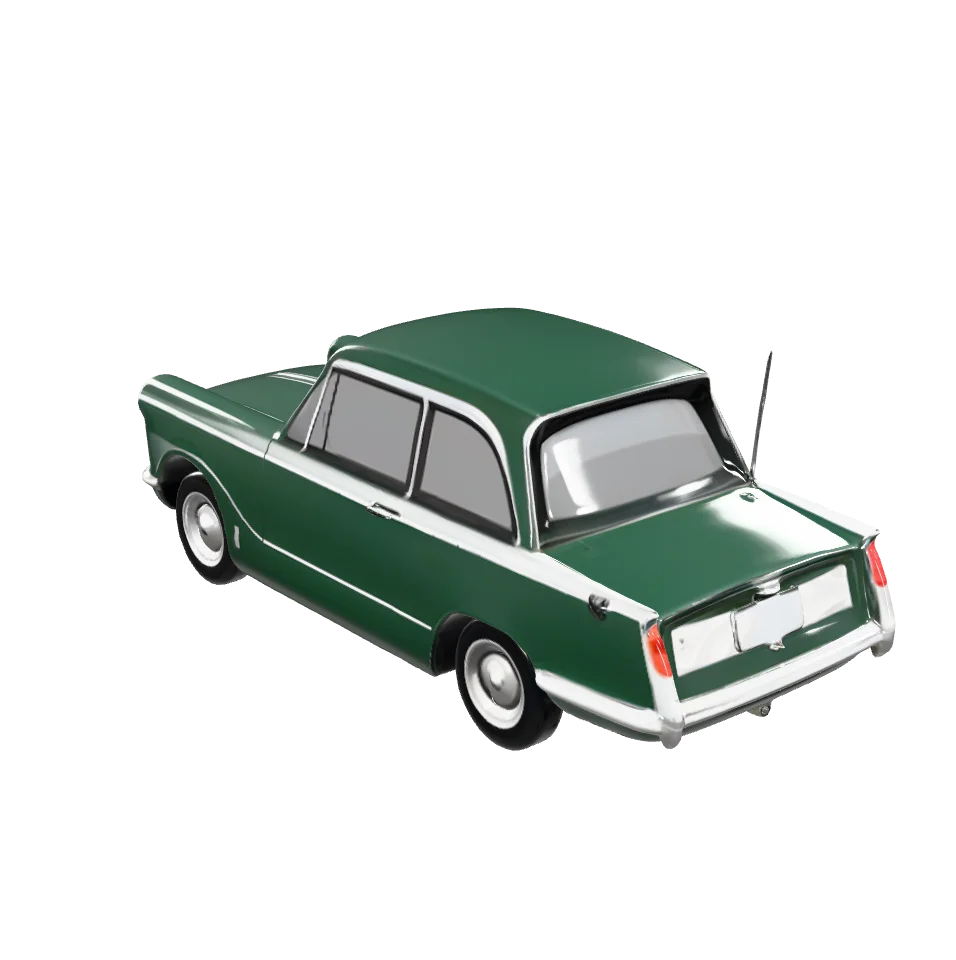
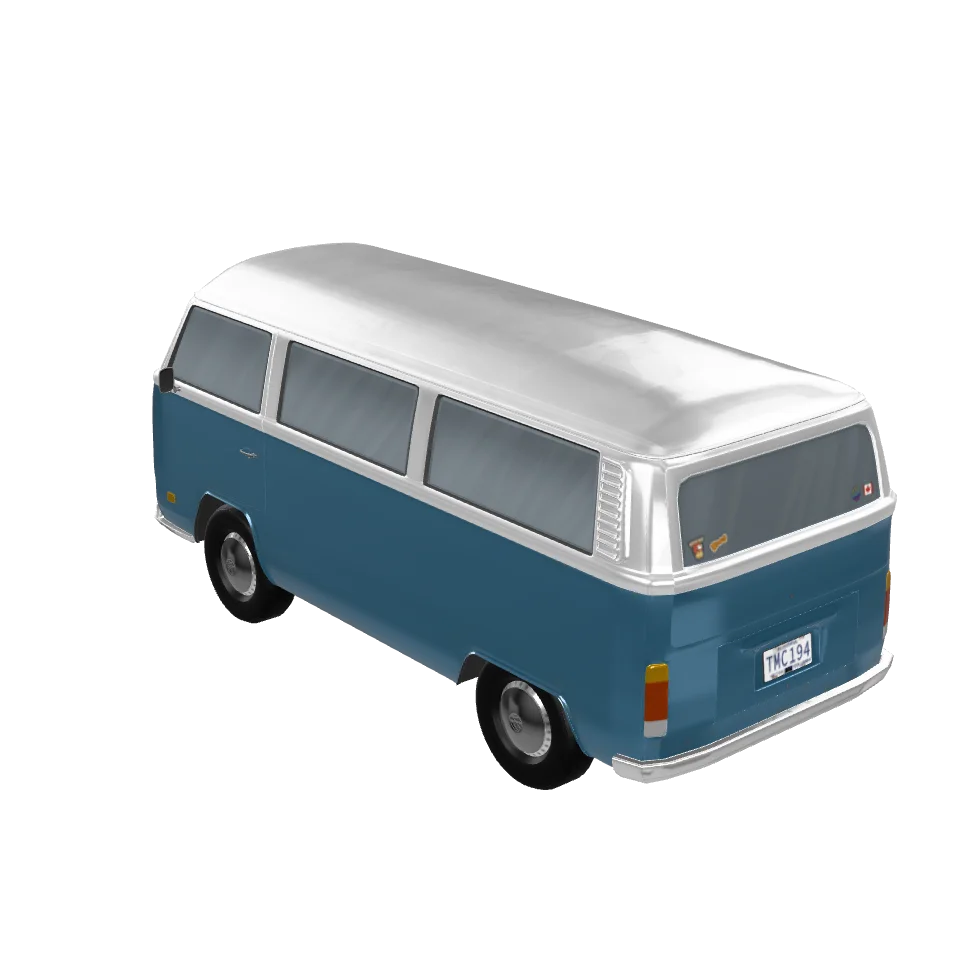
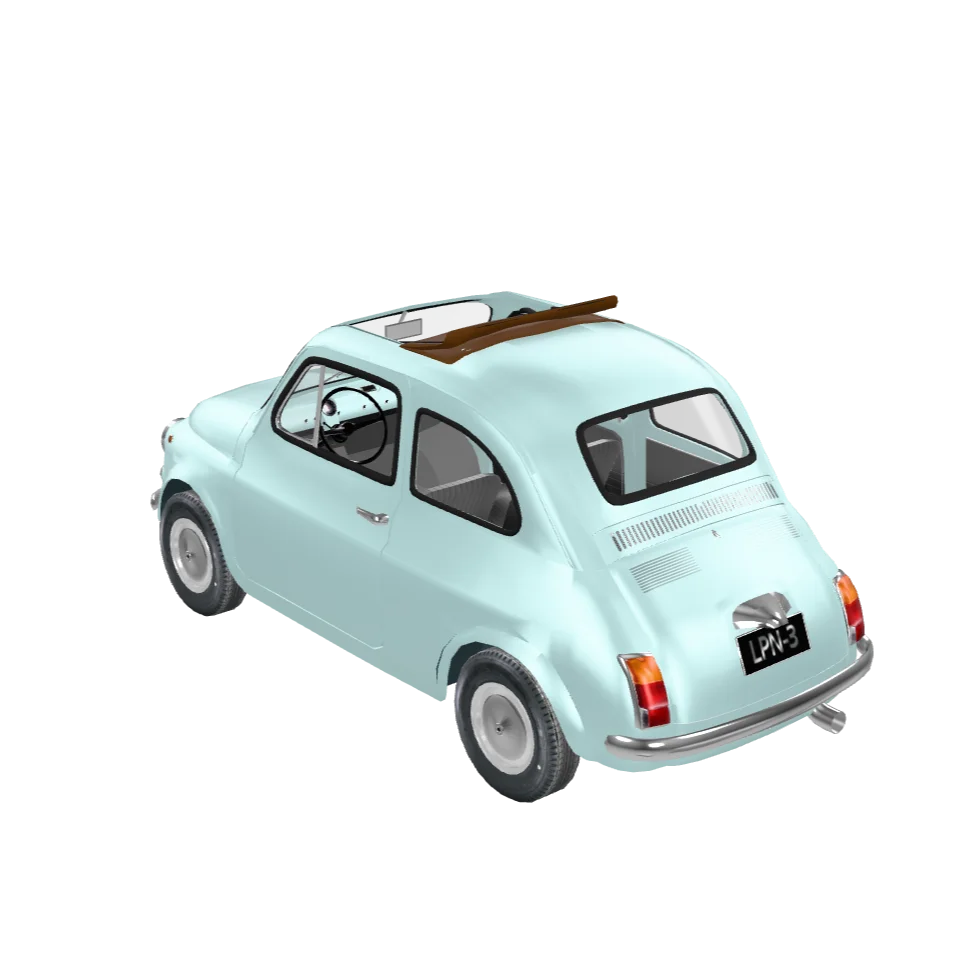
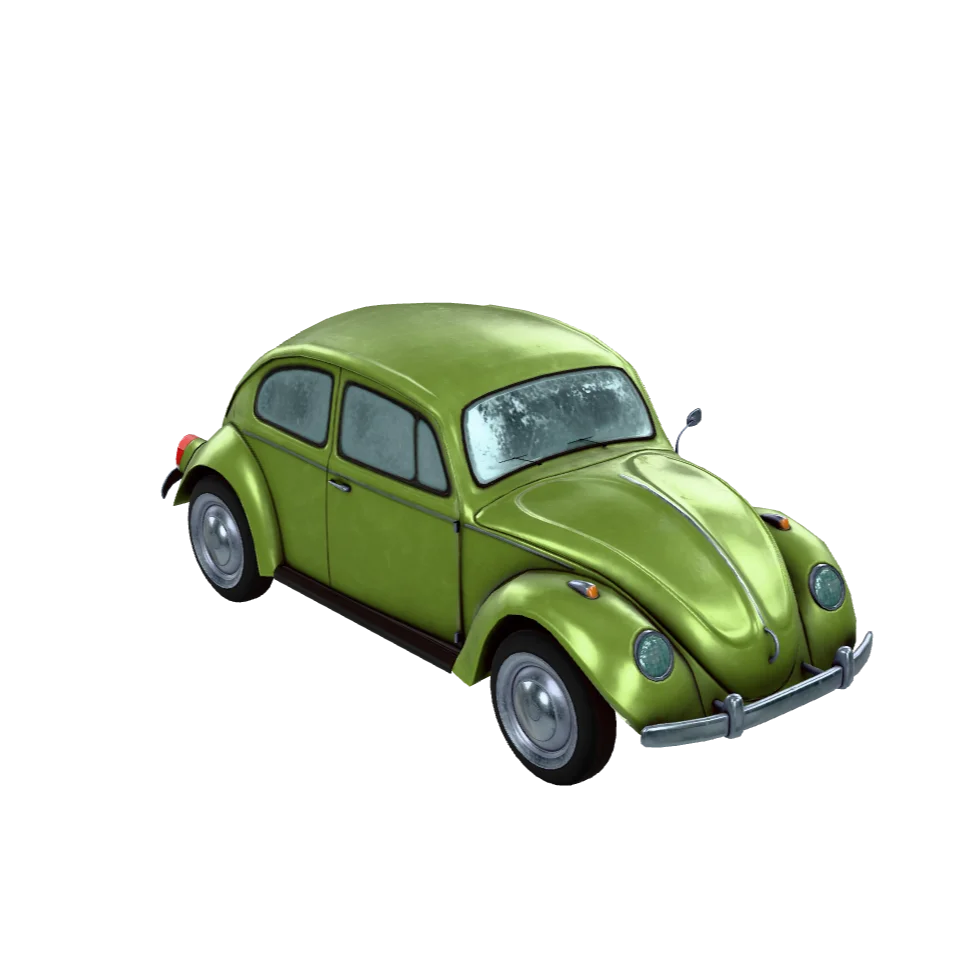
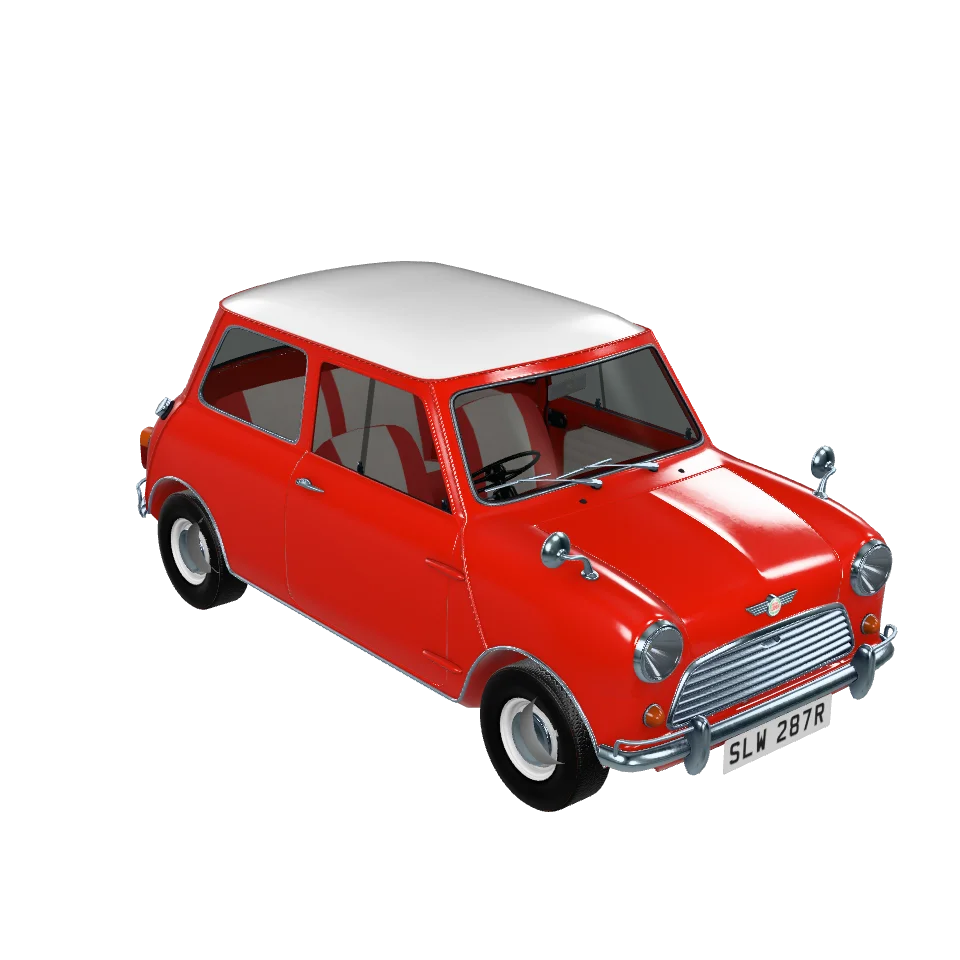
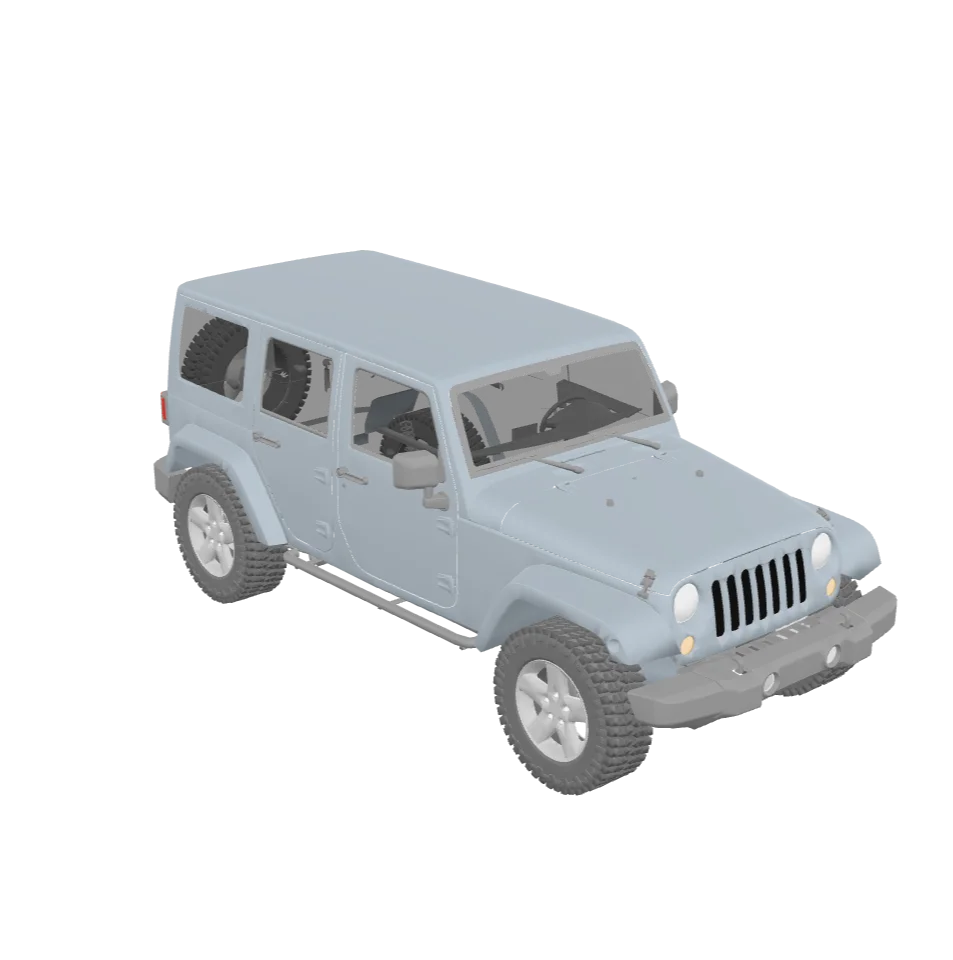
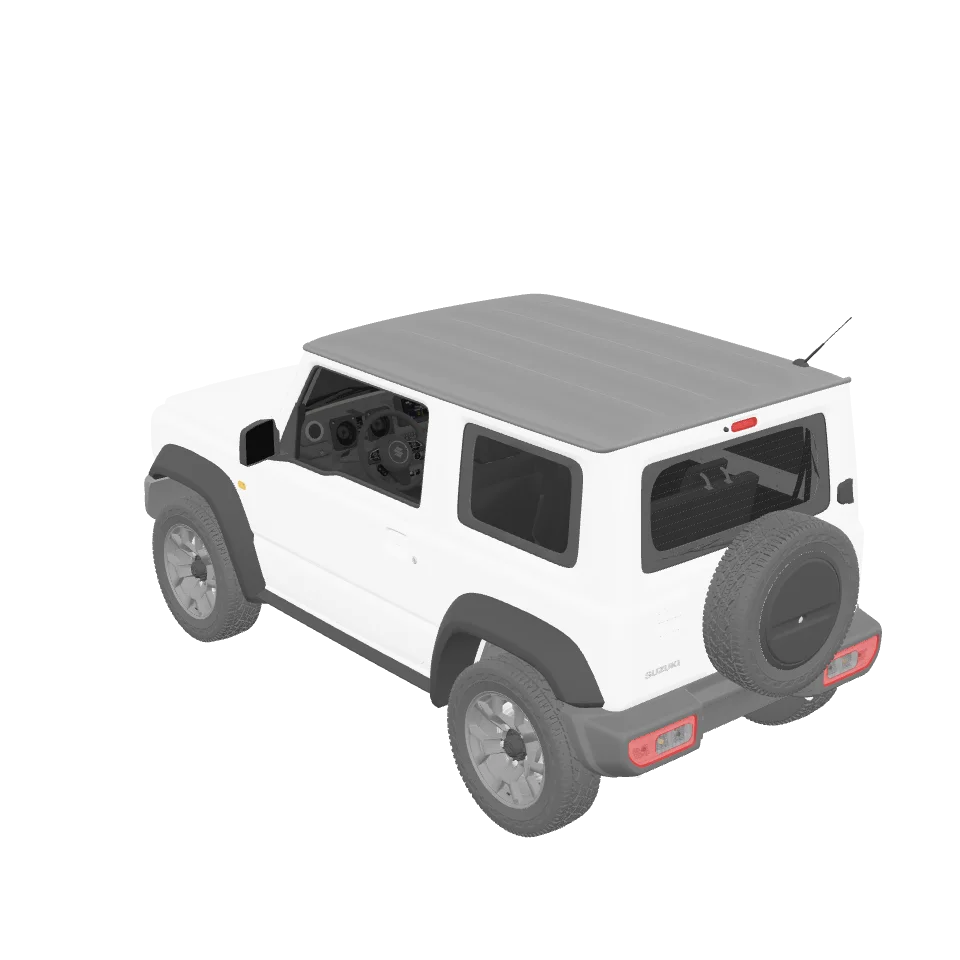
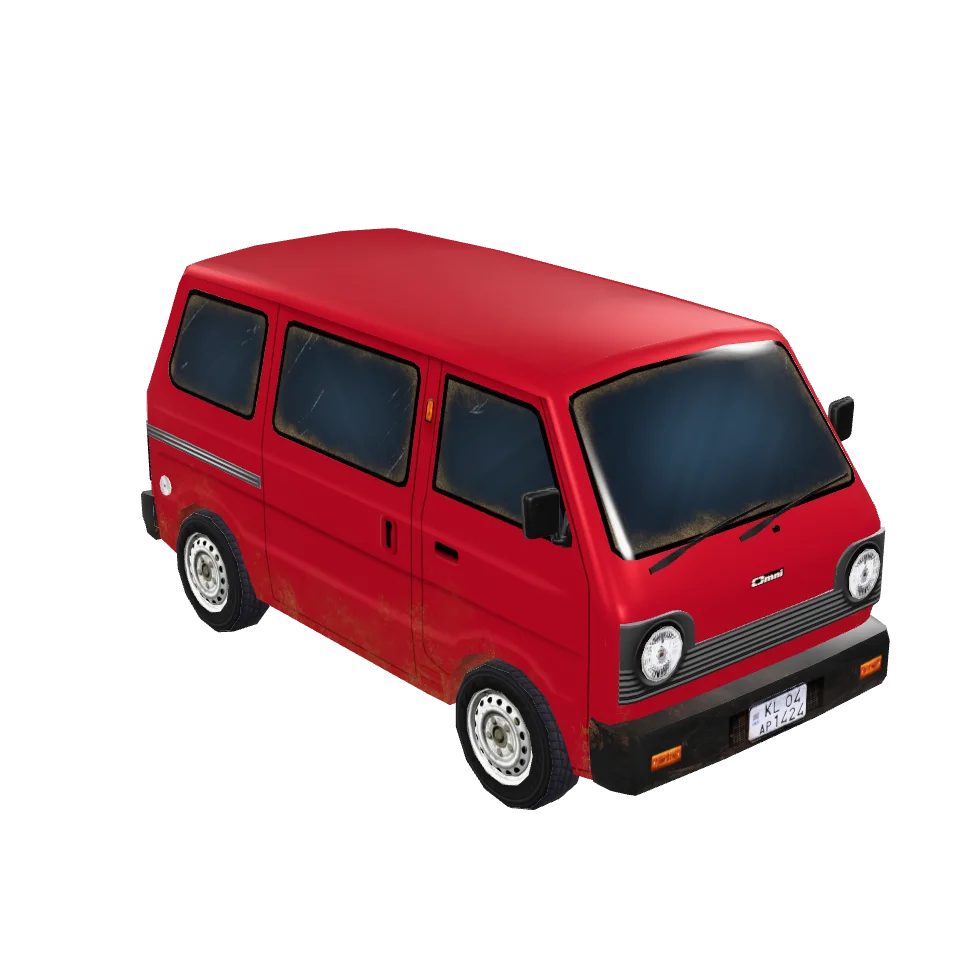
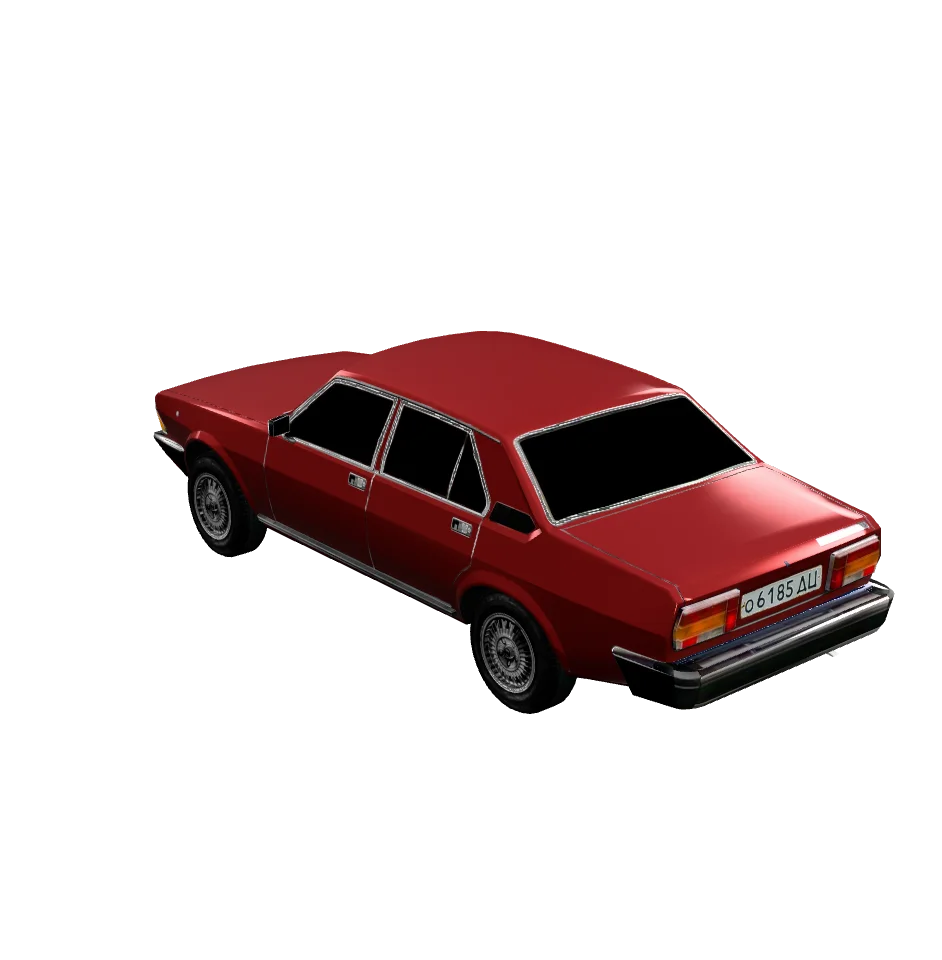
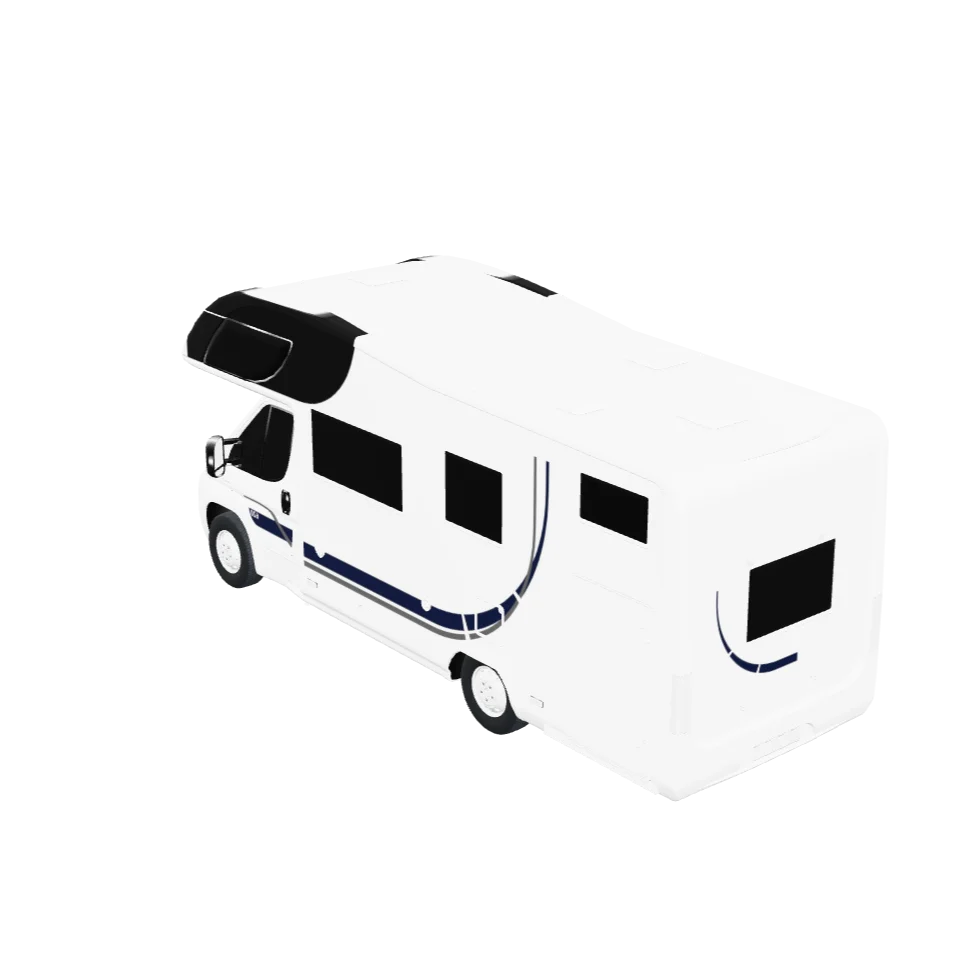
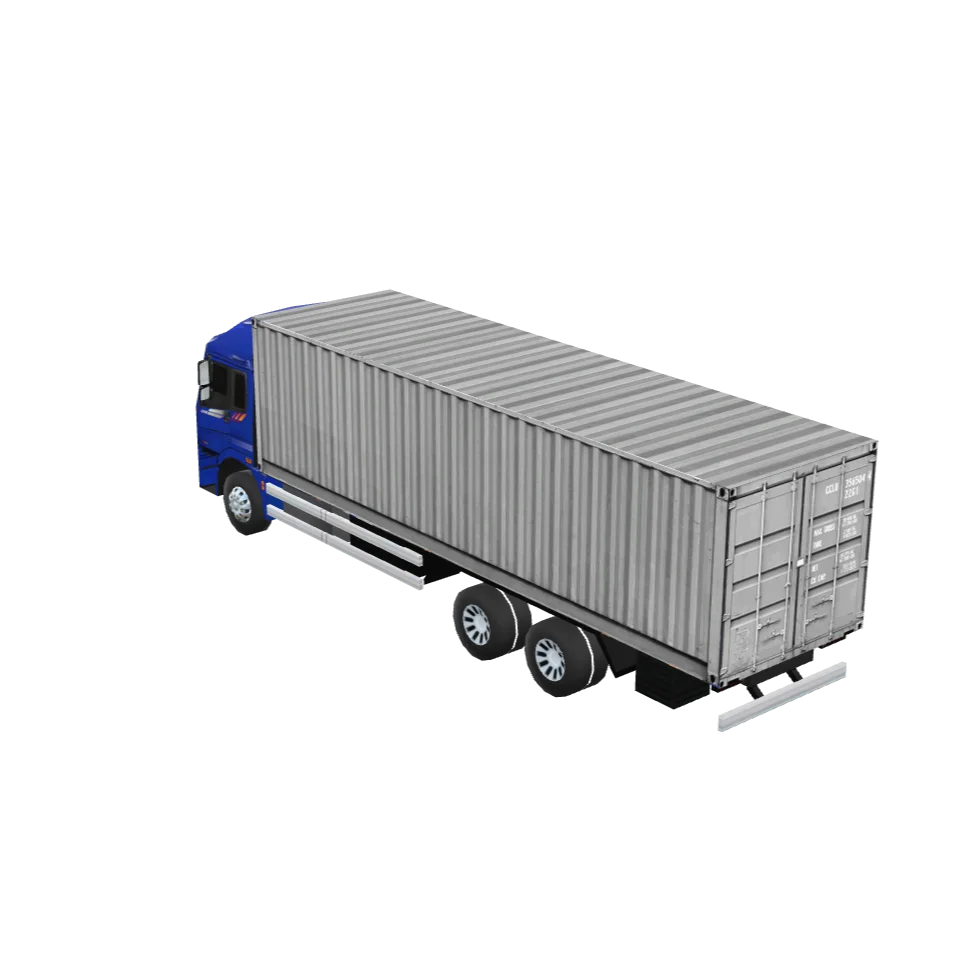
- Ground vehicles – cars, vans, and bikes that follow the road and sit correctly on hills and terrain.
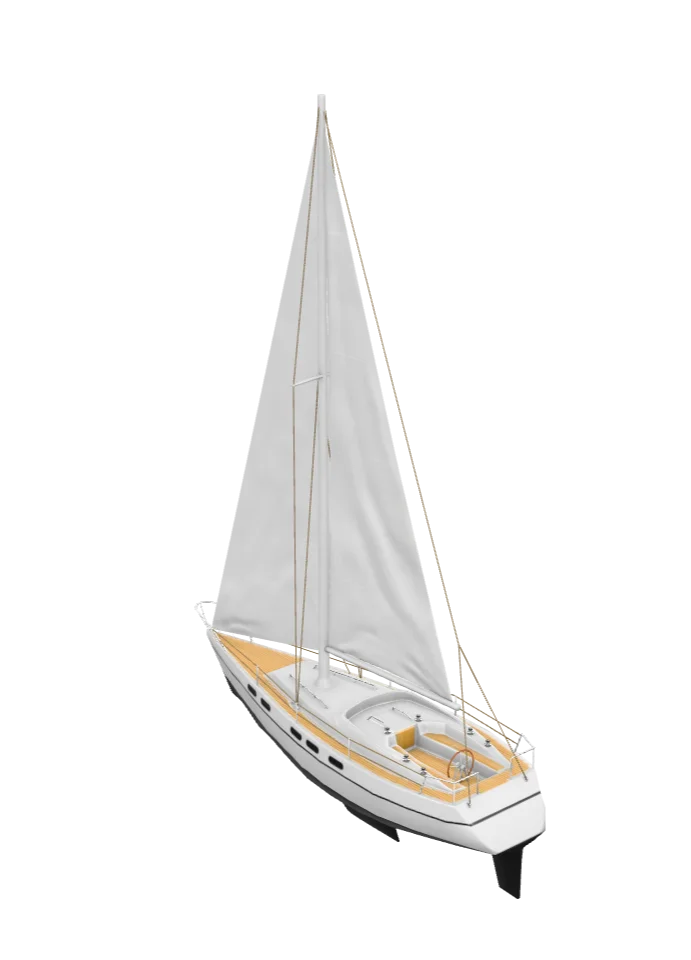
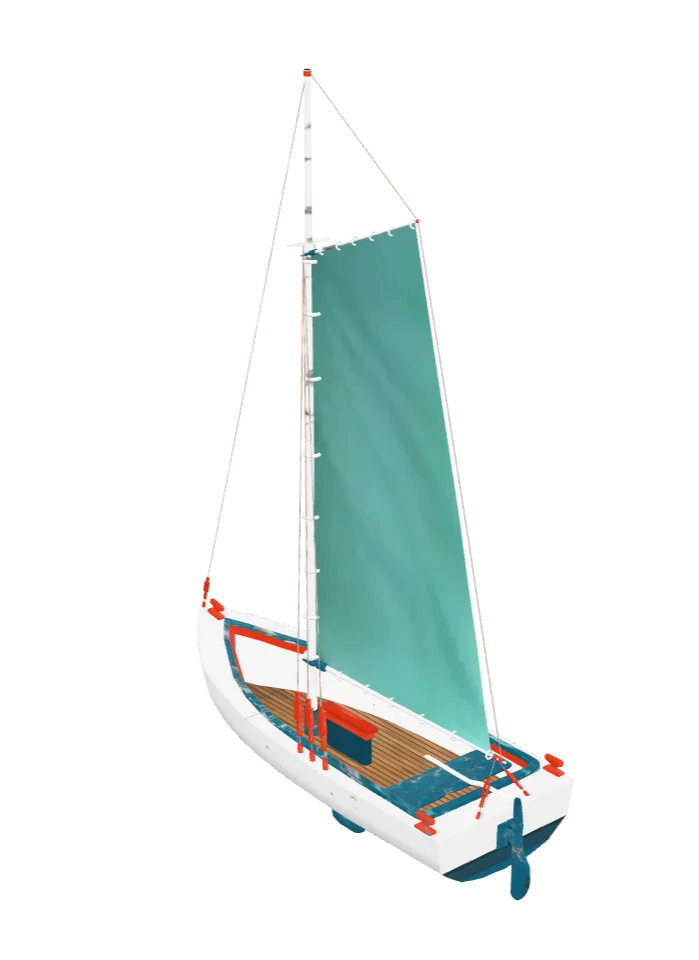
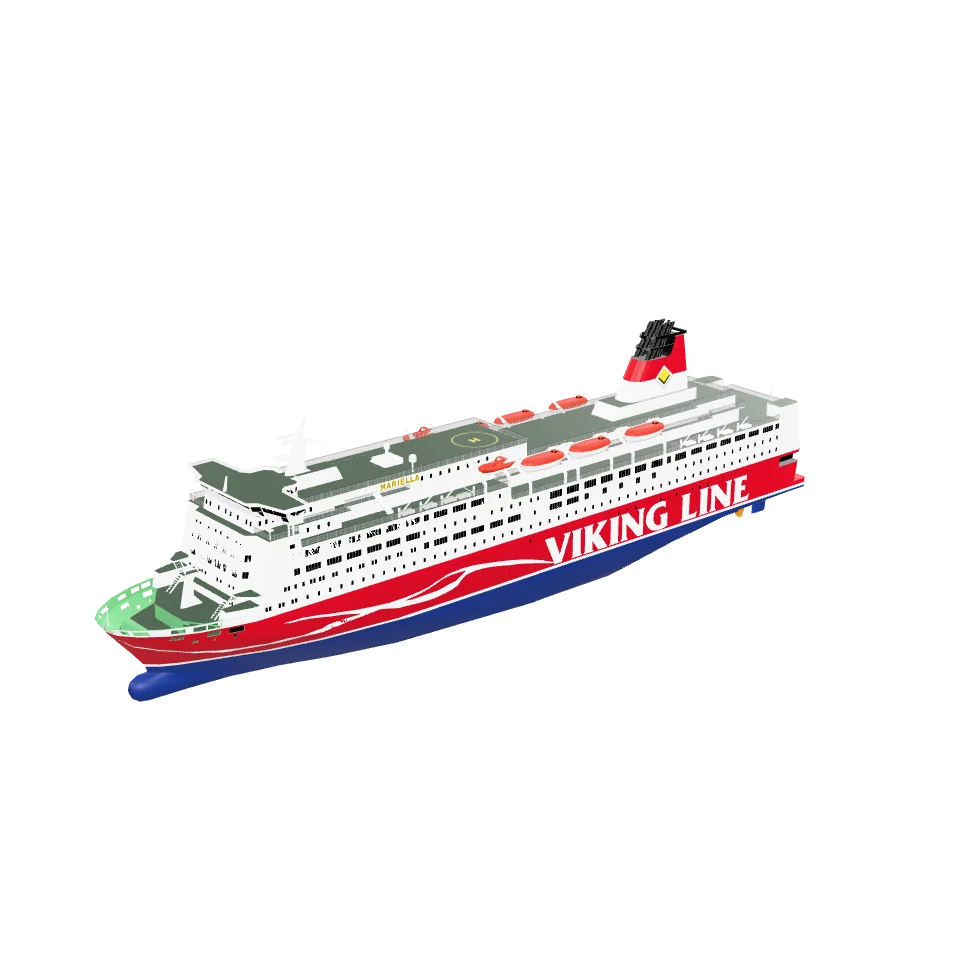
- Boats – ferries and boats that sit on the water and turn with the route as they cross.
The model leads your route in 3D, turning to face the direction of travel — a plane climbing away on a flight leg, a car winding along a mountain road, a boat crossing the water.
Your own vehicle can lead the route too. Photograph it from four sides and AvoMap builds the model for you, or import a GLB file you already have — see 3D Models.
Like the line style, the vehicle is chosen per segment — a flight leg can lead with a plane while the drive that follows leads with a car. Set one up the way you like, then Use for all puts it on every segment at once.
Just the line, no marker
Sometimes the cleanest look is the route drawing itself with nothing leading it. Use the toggle at the top of the Vehicle panel to switch the marker off — the track still draws along your path, just without a circle or model. Like the other vehicle settings, this is per segment, so you can hide the marker on one leg and keep it on another.
The 3D model library
Tapping Change Model opens a library of ready-made 3D models. Match one to how you travelled — an airliner for the flight, a classic car for the road trip, a boat for the crossing. Here's the full lineup you can pick from.
Ground vehicles
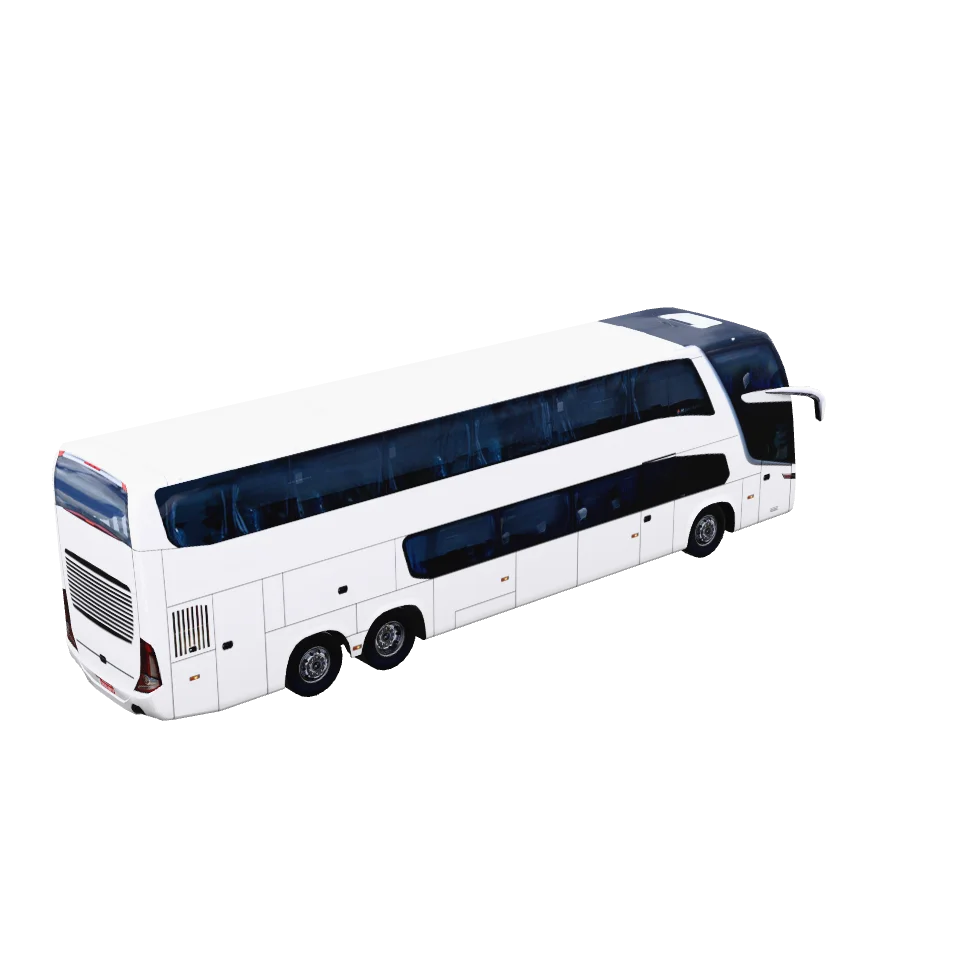
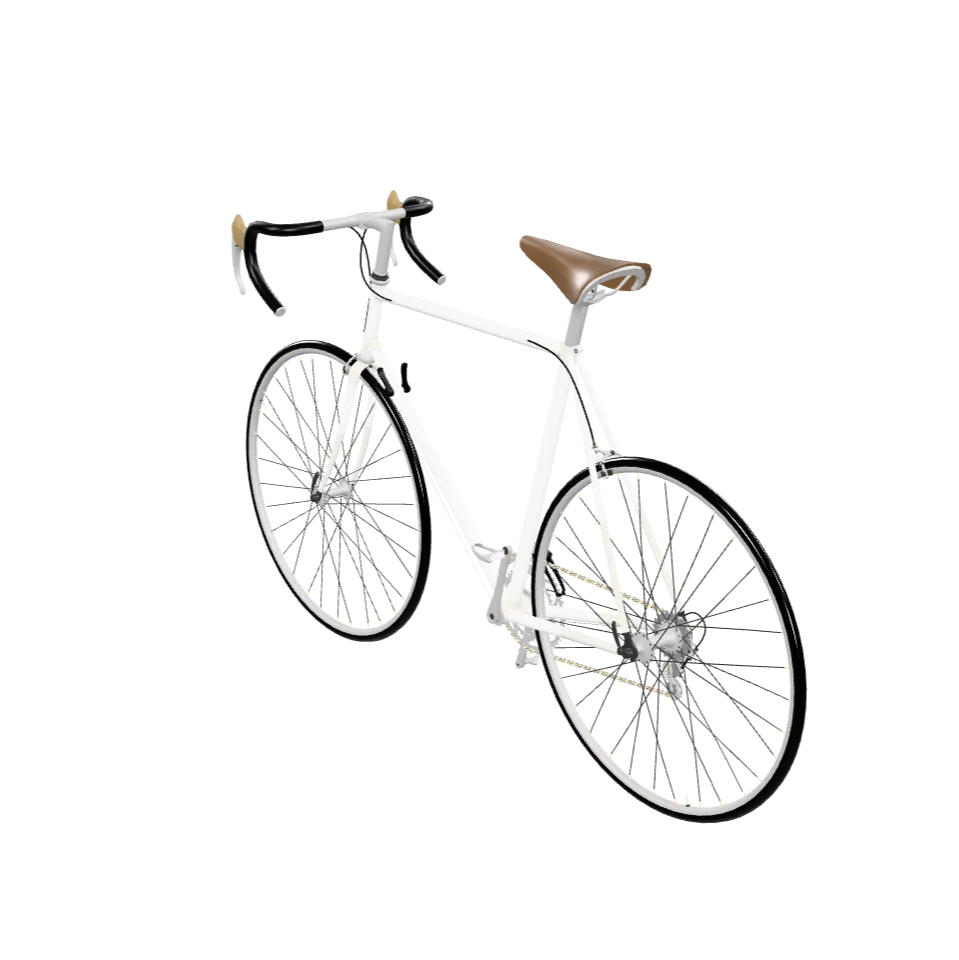
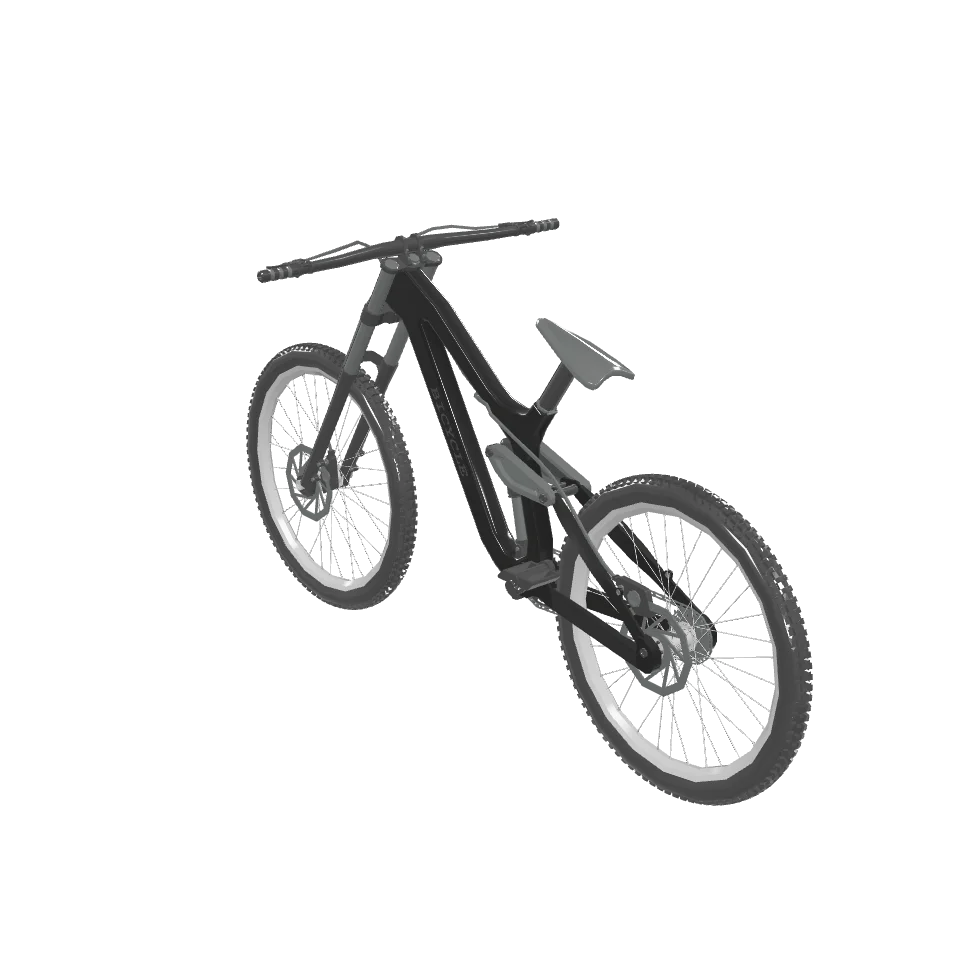
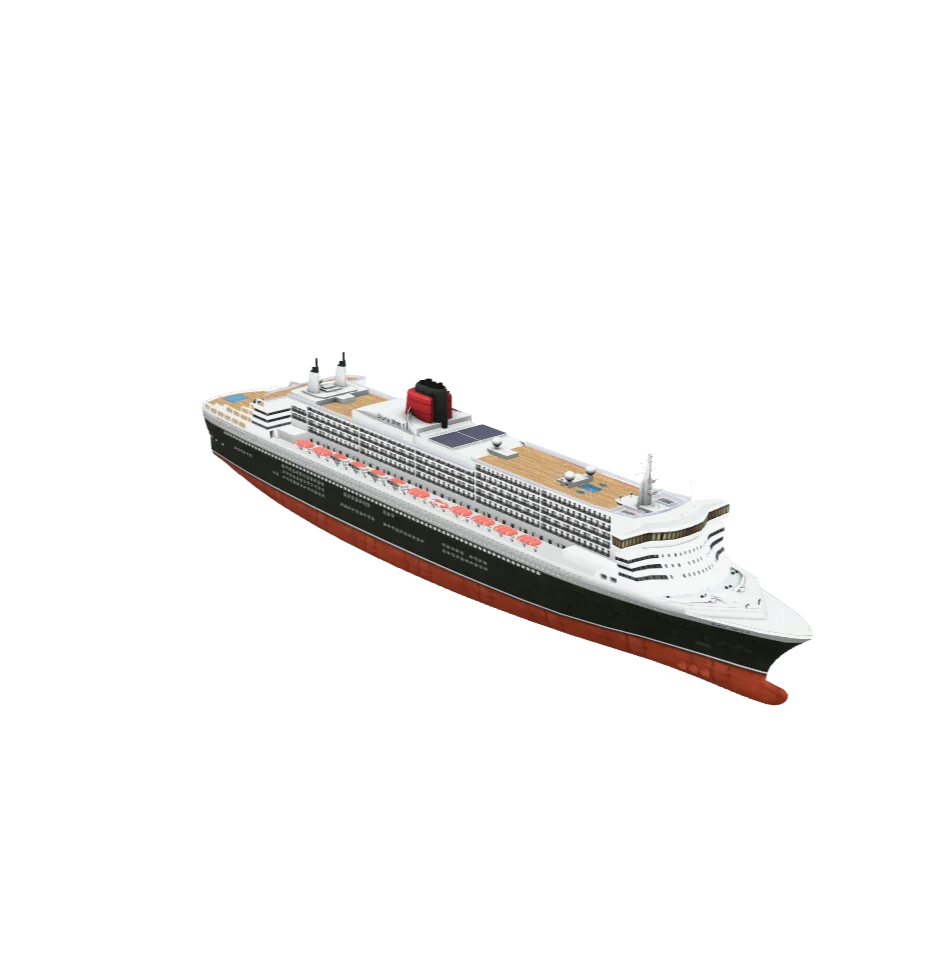
Aircraft
Distance and time on screen
You can show a live distance and time readout that counts up as the journey plays, so viewers can follow how far and how long you travelled.
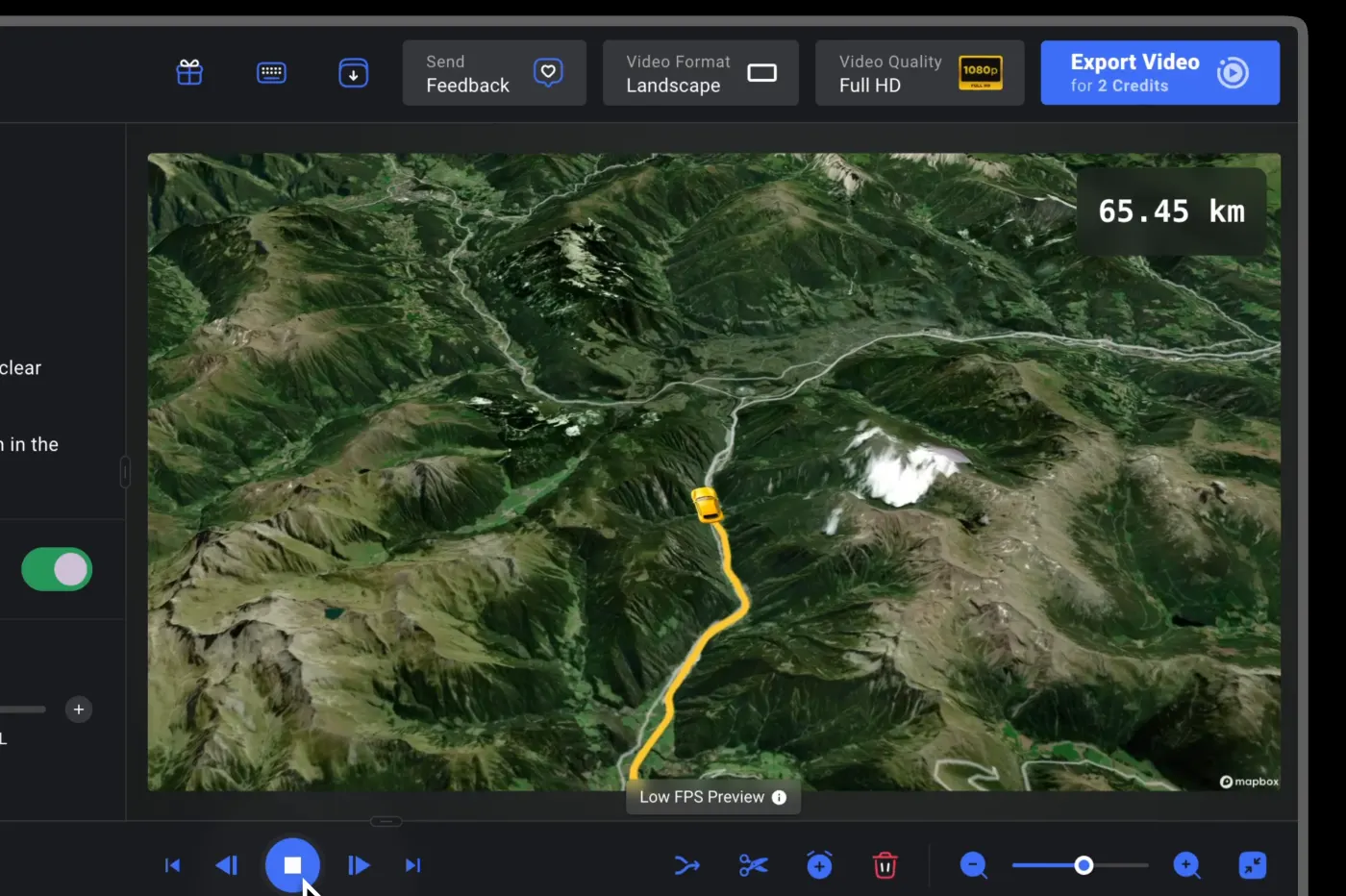
Distances can be shown in kilometers, miles or nautical miles. Switch units right on the distance card, or set them in Settings.
Tips
- Pick a color that pops. The track should stand out from the map underneath it.
- Match the model to the mode. A plane for flights, a car for drives, a boat for water crossings — it makes the story instantly clear. Or use your own vehicle instead of a stock one.
- Don't overdo the width. A track that's too thick can hide the map and the places you passed.
- Start from a solid route. The track follows the path you draw in the Route tab, so a clean route makes for a clean line.
Frequently Asked Questions
How do I change the color of my route line?
Open the Track tab and pick any color for the line. You can also adjust its width and opacity, and style each segment separately.
Can I show a plane, car, or boat moving along my route?
Yes. Swap the simple marker for a 3D model — aircraft, cars, bikes, or boats — that leads the way and turns to face the direction of travel.
How do I show distance and time in the video?
Turn on the distance and time readout in the Track tab. It counts up as the journey plays, in kilometers, miles or nautical miles.
Where to go next
Was this page helpful?